How-To Guides|
How to Set Up a Kids GPS Smartwatch: Complete Parent's Guide (2026)
SIM cards, parent apps, contact lists, geofencing — setting up a kids smartwatch can be confusing. This step-by-step guide covers every brand and common pitfalls.
School mode decides whether a kids smartwatch gets allowed or confiscated. Here is how to set the hours, handle half days, test it, and email the teacher.
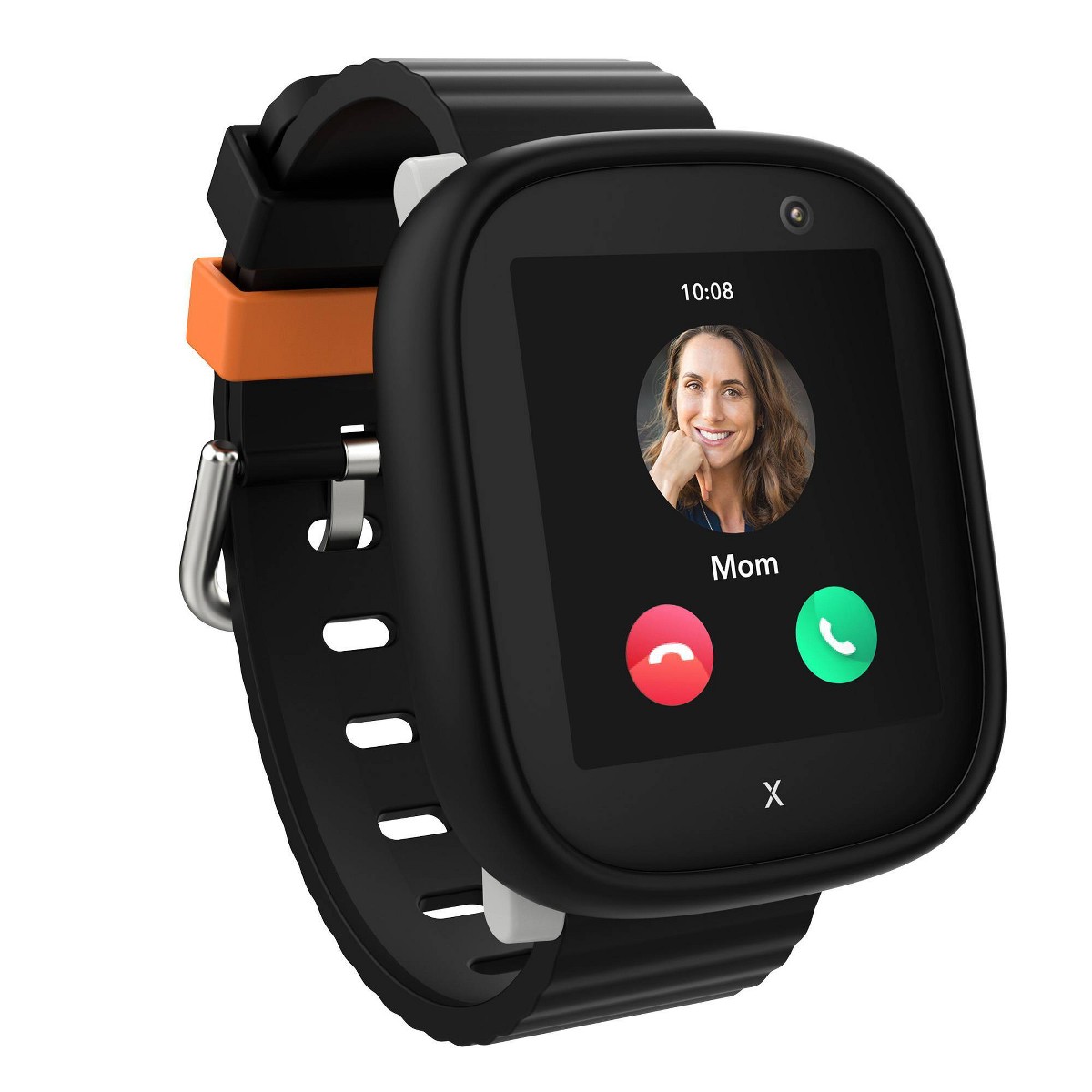
Xplora X6Play
$169.99· 4.3/5 rating
| # | Watch | Price | Rating | Ages | Best For | |
|---|---|---|---|---|---|---|
| 1 | Xplora X6PlayTop Pick | $169.99 | ★★★★☆ 4.3 | 5-12 | Best School Mode | |
| 2 | Garmin Bounce 2 | $299.99 | ★★★★☆ 4.1 | 6-12 | Best for Camera Bans | |
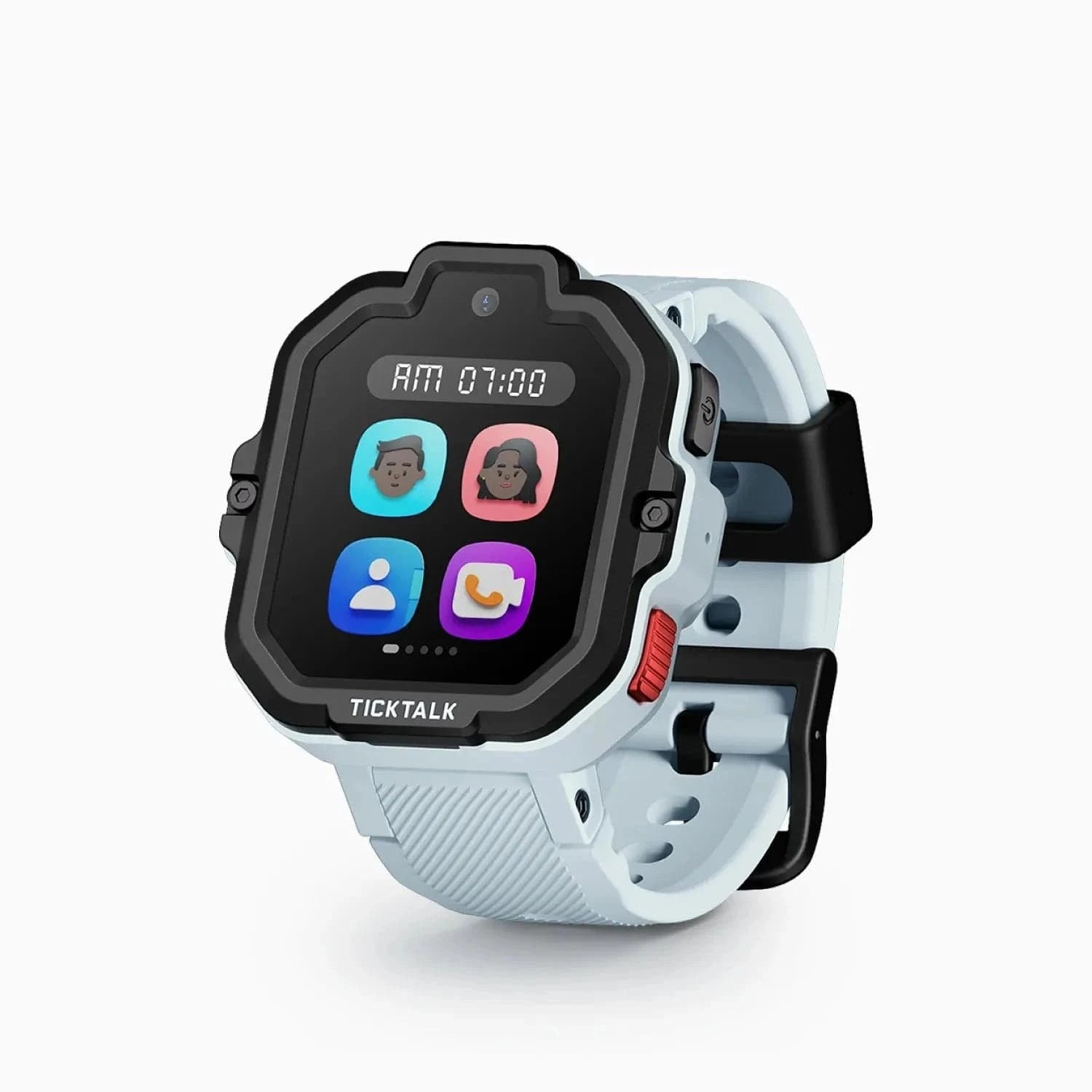
| 3 | TickTalk 5 | $159.99 | ★★★½☆ 3.9 | 3-12 | Reliable silent and school mode scheduling |
Prices may vary. As an Amazon Associate we earn from qualifying purchases.
Affiliate Disclosure: This article contains affiliate links. If you purchase through our links, we may earn a small commission at no extra cost to you.
School mode is the whole ballgame.
Everything else matters less than whether the watch behaves itself between the first bell and dismissal. A watch that buzzes during a spelling test ends up in a desk drawer. A watch that shows nothing but the time stays on the wrist all year.
I have set this up on every watch we recommend, and I have gotten it wrong -- once badly enough that our tester got a note home.
Still choosing a watch? Start with our best kids smartwatches for school roundup; our back-to-school guide covers when to buy and the broader first-day checklist. This page is only about school mode.
School mode goes by different names -- class mode, do not disturb, lock mode, quiet time. The idea is the same: during a schedule you set, the watch stops being a gadget and becomes a wristwatch.
What it disables (on a good implementation):
What it does not disable:
Parents get this backwards constantly. I have talked to families who refused to turn school mode on because they thought it would blind them for seven hours a day. It does the opposite: it removes the distraction and leaves the safety feature intact.
Some school modes genuinely blank the watch. Others just mute it and leave the kid free to scroll menus under the desk.
| Watch | Price | Camera | School-mode thoroughness |
|---|---|---|---|
| Xplora X6Play | $169.99 | Yes | Most thorough tested -- shows only the time during school hours |
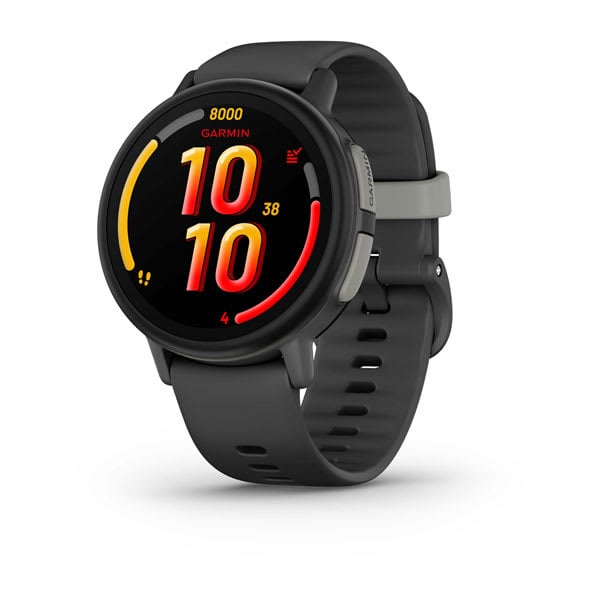
| Garmin Bounce 2 | $299.99 | No | Low-distraction by design; no camera to disable |
| TickTalk 5 | $159.99 | Yes | Reliable silent/school mode; strong pickup coordination after |
| Gabb Watch 3e | $229.99 | No | Little to lock down -- no camera, internet, or games |
Two strategies work, depending on your school.
Strategy one: lock everything down. The Xplora X6Play has the most complete per-day lockdown I have used -- during the hours you set, the screen shows the time and nothing else. $169.99, ages 5 to 12, ships with an Xplora Connect SIM (~$12/mo, AT&T + T-Mobile networks). Not compatible with Verizon.
Strategy two: bring a watch with nothing to disable. If your school bans camera-equipped devices, the cleanest answer is a watch with no camera. The Garmin Bounce 2 clears a camera ban on sight. $299.99, ages 6 to 12, 5 ATM swim-proof, elite GPS, own service at $9.99/mo. The Gabb Watch 3e does the same at $229.99 -- no camera, no internet, no games.
The TickTalk 5 sits between them: reliable silent/school mode, but a camera, so it needs the same policy check. Its HD video calling is genuinely useful the second school mode ends and you are hunting for each other in a forty-car pickup line. $159.99, ages 3 to 12, 48-hour battery, AT&T and T-Mobile only (not Verizon).
Do this with the watch in your hands, not on your kid's wrist. If it is brand new, work through our full setup guide first. School mode is the last step, not the first.
The hours matter more than any other setting, and most parents get them wrong in both directions.
Kids are in the hallway well before the bell, and those last five minutes are prime time for showing a friend what the watch can do. An early start also buffers clock drift. If the first bell is 8:15, start at 8:05. Nobody ever got in trouble for a watch that went quiet too early.
This is the mistake I made. I set school mode to end when our tester would normally be home. The result: she stood in the pickup line unable to call me when I was running late, holding a watch doing an excellent impression of a rock.
End school mode at the dismissal bell. The half hour between dismissal and getting home is exactly when a kid needs to reach you -- the bus did not come, practice moved, they cannot find your car. That window is the whole reason many families buy these watches. If dismissal is 3:10, end at 3:10. Not 3:45.
Some parents do. I do not: lunch and recess are the least supervised parts of the day, which makes them the likeliest place for a watch to get shown off, traded, or confiscated. If you have a specific need -- a medical check-in, a custody arrangement -- use a second schedule block rather than one long window, and tell the teacher.
If your child arrives at 7:00 for before-care and school starts at 8:15, do not extend school mode over that hour -- that is drop-off time, when you may actually need each other. Same at the back end.
Every school calendar has days that break the schedule. This is where set-and-forget falls apart.
Early dismissals and half days. School mode will still be running when your kid walks out the door. Turn the schedule off that morning, or edit that day's end time the night before. I keep early-release dates in my phone calendar with an evening-before alert.
Field trips. This is the one day I turn school mode off entirely -- and the one day some schools most want it on. Ask the teacher first. If the answer is no, leave the schedule alone and rely on GPS, which keeps running regardless.
Testing weeks and delays. Testing sometimes runs past the normal end time, and a two-hour delay means school mode engages while your kid is still at home. Adjust those mornings.
Uneven weekly schedules. Many schools have a late-start Wednesday or early-out Friday. This is where per-day scheduling matters, and the Xplora handles it best. If your watch supports only one weekday schedule, set the most restrictive common window and adjust on the odd days.
Do not let the first real test be a Tuesday morning in a classroom. Rehearse the weekend before.
Fifteen minutes, and it is the difference between confidence and hoping. Our parental controls roundup covers which brands lock kids out most reliably.
Send a short email before the first day. Teachers who find out about a watch by discovering it are already annoyed; teachers told in advance are usually fine. Lead with the restriction, not the features, and make it easy for them to say no.
Subject: Heads up -- [Child's name] will be wearing a GPS watch
Hi [Teacher's name],
Quick note before the year starts. [Child's name] will be wearing a kids GPS smartwatch, mainly so we can coordinate pickup.
I have it set to school mode from [8:05] to [3:10] every school day. During those hours it only shows the time -- no calls, no messages, no camera, no games, and no sounds or vibration. It cannot notify them of anything during class.
It stays trackable on my end for safety, but that is entirely on the parent app and does nothing on the watch itself.
If it ever becomes a distraction, tell me and I will fix it or take it off them -- no argument. And if classroom policy does not allow it at all, just say so and we will leave it at home.
Thanks so much, [Your name] [Your phone number]
Two details make that email work: naming your actual hours shows you configured something specific, and the offer to remove it buys goodwill. If the teacher asks to see it, offer a thirty-second demo -- a watch displaying nothing but the clock is more persuasive than any description.
Read the written policy first. A surprising number of "smartwatch bans" turn out to be phone bans a staffer extended by assumption, or camera bans a no-camera watch satisfies. Get the handbook language, not a secondhand summary.
If it is a camera ban: buy a watch without a camera. The Garmin Bounce 2 and the Gabb Watch 3e both have none, and that ends the conversation.
If it is a blanket electronics ban: ask whether a medical or safety exception exists (many districts have one written in), about a check-in arrangement where the watch sits in the office during the day, and whether the rule covers after-school programs and sports, which are often governed separately.
If the answer stays no, respect it. Use the watch before school, after school, and on weekends -- that still covers most of what made you buy it. Our what age should a kid get a smartwatch guide helps if a ban has you rethinking the timing.
School mode is the difference between a watch that lasts the school year and one that lives in a drawer. Start five to ten minutes before the first bell, end at the dismissal bell, test it the weekend before, and email the teacher in advance.
And remember what most parents get backwards: GPS keeps running the entire time. You are not trading visibility for classroom peace. You get both.
For the most complete lockdown, the Xplora X6Play is my pick. If your school bans cameras, skip the debate and buy one that does not have a camera.
Yes -- on every watch we recommend, GPS keeps running for parents the entire time school mode is active. It locks the kid-facing features -- calls, messages, camera, games, sounds -- not your ability to see where they are. You can open the parent app mid-class and get a current location. This is the most misunderstood thing about school mode.
Start 5 to 10 minutes before the first bell and end at the dismissal bell -- not when your child gets home. The stretch between dismissal and arriving home is exactly when kids need to reach you about a missed bus or a late pickup. Ending at home-arrival time strands them in the pickup line with a dead-weight watch.
On most kids watches, no -- the schedule is controlled from the parent app and the child cannot override it. Verify it on your model rather than assume. Hand the watch to your kid during the test run and ask them to try. Kids find gaps faster than parents do, and it is better to learn about one at home.
Either turn the schedule off that morning from the parent app, or edit that day's end time the night before. I keep early-release dates in my phone calendar with an evening-before alert. Forget, and your child walks out at noon holding a watch that thinks it is still third period.
The Xplora X6Play has the most thorough per-day lockdown we have tested -- during school hours it shows only the time. But if your school bans camera-equipped devices, the better answer is a watch with no camera, like the Garmin Bounce 2 or Gabb Watch 3e. Those clear a camera ban on sight.
Read the written policy first -- many apparent smartwatch bans are actually phone bans, or camera bans that a no-camera watch satisfies. If it is a genuine blanket ban, ask about a safety exception or a check-in arrangement where the watch stays in the office during the day. If the answer stays no, use the watch outside school hours.
Choosing a watch first? See our best kids smartwatches for school picks and our back-to-school buying guide. Not sure the school will even allow it? Read are kids smartwatches allowed in school?
SIM cards, parent apps, contact lists, geofencing — setting up a kids smartwatch can be confusing. This step-by-step guide covers every brand and common pitfalls.
How to see your child's location from your phone using a kids smartwatch -- live GPS tracking, location history, safe-zone alerts, and honest accuracy limits.
Kids smartwatch dying before pickup? Here is what really drains the battery -- GPS frequency, weak LTE signal, video calls -- and the fixes that add hours back.
Your kid's watch shows the wrong street, 300 feet off, or a stale location. Here's exactly why kids smartwatch GPS drifts -- and the fixes that actually work.
Kids smartwatch won't activate, pair, or hold a signal? Work the real causes in order -- SIM, plan, carrier, pairing, coverage -- plus when to just return it.
New review alerts, deal drops, and seasonal buying guides — delivered weekly. No spam, unsubscribe anytime.
No spam. Unsubscribe anytime.