Buying Guides|
Kids Smartwatches for Back to School 2026: When to Buy + Setup Checklist
Back-to-school is prime time for a kids GPS smartwatch. Here's when to buy, our top teacher-approved picks, and a pre-first-day setup checklist so it just works.
Find the best kids smartwatches allowed at school. Features like school mode, silent alerts, and GPS tracking that teachers and parents both approve.
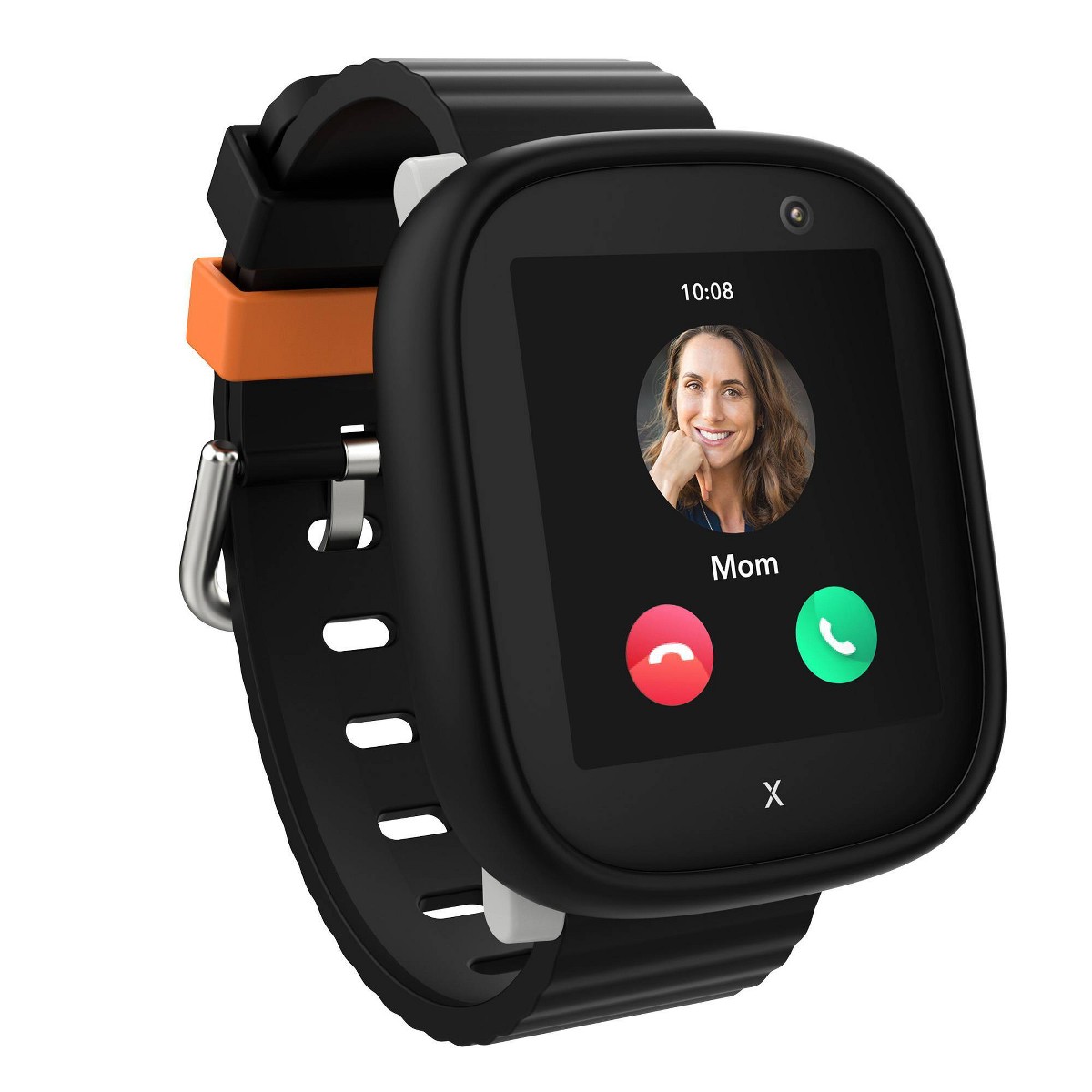
Xplora X6Play
$169.99· 3.8/5 rating
| # | Watch | Price | Rating | Ages | Best For | |
|---|---|---|---|---|---|---|
| 1 | Xplora X6PlayTop Pick | $169.99 | ★★★½☆ 3.8 | 5-12 | Best school mode - blocks all features during class | |
| 2 | Garmin Bounce | $149.99 | ★★★★½ 4.5 | 6-12 | Do Not Disturb mode for school hours | |
| 3 | Gabb Watch 3e | $229.99 | ★★★★☆ 4 | 6-12 | Simple design won't draw attention | |
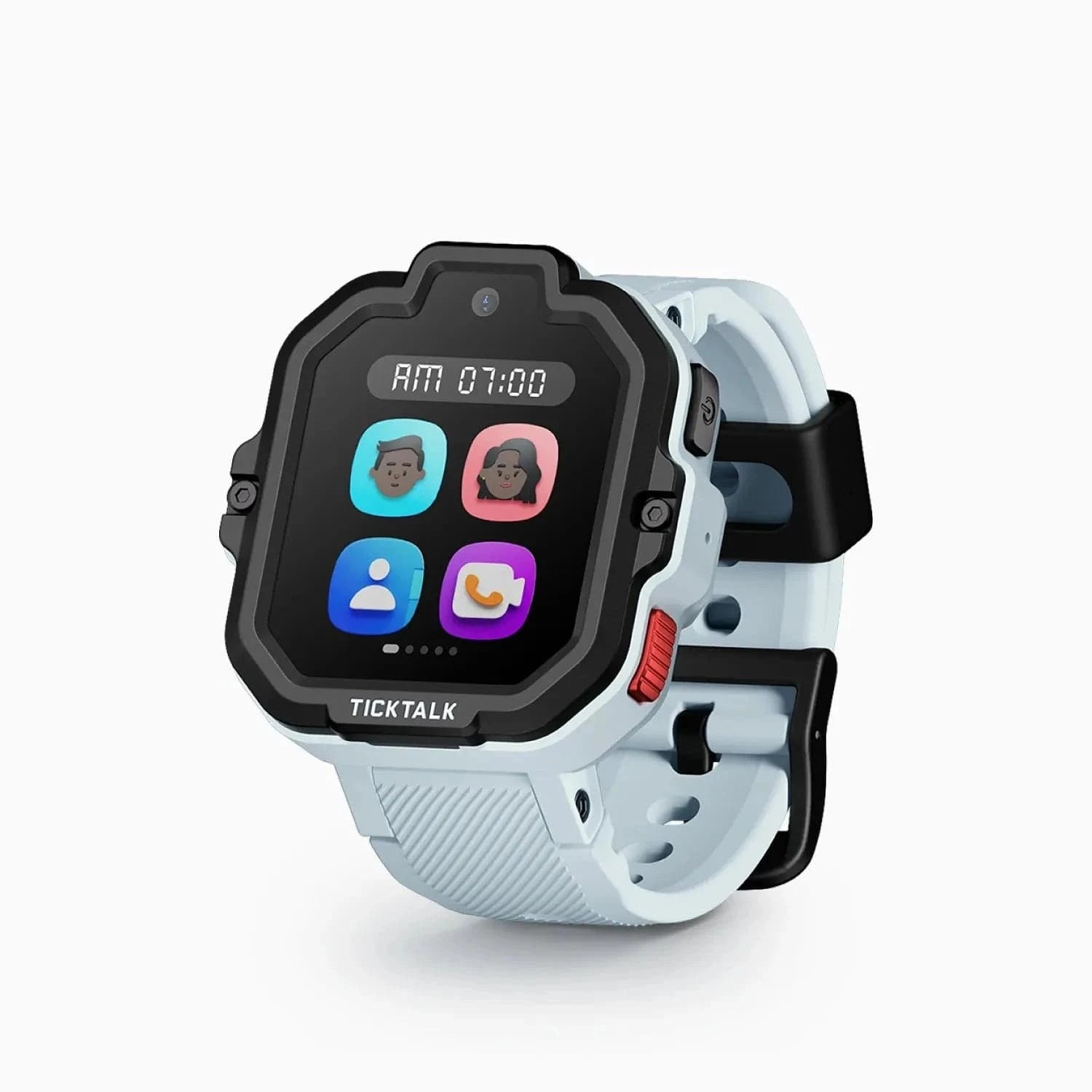
| 4 | TickTalk 5 | $159.99 | ★★★★☆ 4 | 3-12 | Silent mode for class |
Prices may vary. As an Amazon Associate we earn from qualifying purchases.
Affiliate Disclosure: This article contains affiliate links to Amazon. If you purchase through these links, we earn a small commission at no extra cost to you. This helps fund our independent testing. We bought every watch on this list with our own money -- no freebies, no sponsored picks.
Top pick: The Xplora X6Play ($169.99) is my best overall school watch -- it has the most thorough school mode I have tested, completely locking down calls, messages, camera, and apps during class while GPS keeps tracking in the background. If your school bans cameras or you want the easiest teacher approval, the Gabb Watch 3e ($229.99) has no camera and is so simple most teachers approve it on sight.
Here is the conversation I keep having with other parents at pickup: "I want my kid to have a smartwatch for safety, but will the school even allow it?"
It is a fair question. I have been testing kids smartwatches for over two years now, and I have watched test kids get notes sent home, have devices temporarily confiscated, and -- eventually -- find the watches that teachers actually approve of. The difference between a watch that survives a school day and one that ends up in the teacher's desk drawer comes down to a handful of very specific features.
I am Ryan Mitchell, and I run SmartWatchesForKids. This guide looks at what separates a school-friendly smartwatch from a school-banned one: how school mode works, what device policies typically allow, and which features get a watch sent home.
This guide covers everything: which watches work at school, why they work, how to configure them for the classroom, and how to have the conversation with your child's teacher that makes the whole thing go smoothly. (Shopping for the new year specifically? See our back-to-school buying guide for timing and a pre-first-day setup checklist.)
Most parents shop for a kids smartwatch by looking at GPS accuracy, battery life, and calling features. Those all matter. But if your child will wear this watch to school five days a week, the single most important factor is whether the device will be allowed through the classroom door.
Schools across the country are cracking down on personal electronics. Phones are getting banned in entire districts. Tablets are restricted to school-issued devices only. And smartwatches are caught in the crossfire -- they look like technology, and many teachers treat them like phones until proven otherwise.
The problem is that school policies are rarely written with kids smartwatches in mind. Most student handbooks mention "cell phones" and "electronic devices" but say nothing about wrist-worn GPS trackers. That ambiguity creates a gray area, and gray areas make teachers nervous. A nervous teacher defaults to "no."
I learned this the hard way last year. Our 8-year-old tester wore a smartwatch to school without me checking the policy first. By lunchtime, it was in the teacher's desk. The watch had been buzzing with message notifications all morning because I had not configured the quiet hours correctly. His teacher was not being unreasonable -- she was trying to teach 24 kids long division, and one of them had a tiny computer vibrating on his wrist every ten minutes.
Teachers have a legitimate concern, and I say that as someone who is firmly on the side of kids wearing smartwatches. A watch that buzzes with notifications, lights up with incoming calls, or gives a kid access to games and a camera during class is genuinely disruptive. It is not just the child wearing the watch who gets distracted -- it is the three kids sitting next to them who want to see what is on the screen.
The watches on this list solve that problem. Each one has some form of school mode, do-not-disturb scheduling, or lockdown feature that turns a smart device into a dumb watch during class hours. That distinction -- between a smartwatch and a watch that happens to be smart after 3:00 PM -- is what gets a device approved by teachers.
I asked six teachers across two schools what would make them comfortable with a student wearing a smartwatch in their classroom. Their answers were remarkably consistent:
These five concerns shaped every recommendation in this guide. If you want a deeper look at the safety side of the equation, our guide to kids smartwatch safety features explained covers the technical details behind SOS buttons, geofencing, and contact whitelisting.
Not all "quiet modes" are created equal. Here is what separates a genuinely school-compatible watch from one that just turns the volume down.
The gold standard is a dedicated school mode that completely locks the watch during scheduled hours. This means:
A basic "do not disturb" mode is less thorough. It typically silences notifications but may still allow the child to access menus, swipe through features, or open the camera. That is better than nothing, but it leaves room for distraction -- and it leaves teachers with a reason to say no.
Even vibration can be distracting in a quiet classroom. The best school-friendly watches disable all haptic feedback during school hours. No vibration for messages. No vibration for reminders. The watch sits silently on the wrist, functionally indistinguishable from a basic Timex.
This is the feature parents care about most, and the good news is universal across every watch on this list: GPS tracking continues working even when school mode is active. School mode locks down the kid-facing features. The parent-facing GPS tracking runs independently in the background.
That means you can open your app during school hours and confirm your child is at the school building. You still receive geofence alerts when they arrive and when they leave. Location history records the entire day. The safety net stays fully intact even while the watch appears dormant to your child and their teacher.
Some kids smartwatches include built-in games, a web browser, or access to messaging apps that function like social media. None of that belongs at school. The watches I recommend for classroom use either have no games at all or completely disable them during school mode with no workarounds available to the child.
For a broader look at watches that keep things simple by design, check out our guide to the best GPS smartwatches for kids, which covers tracking-focused options that minimize distractions as a core philosophy.
Before diving into individual reviews, here is how the four watches stack up on the features that matter most in a school setting.
| Feature | Xplora X6Play | Garmin Bounce | Gabb Watch 3e | TickTalk 5 |
|---|---|---|---|---|
| Dedicated School Mode | Yes -- best in class | DND scheduling | Lock mode | Silent mode |
| Per-Day Scheduling | Yes | Single recurring schedule | Single recurring schedule | Single recurring schedule |
| Blocks All Calls | Yes | Yes | Yes | Yes |
| Blocks Messages | Yes | Yes | Yes | Yes |
| Disables Camera | Yes | No camera to disable | No camera to disable | Yes |
| Disables Games/Apps | Yes | No games built in | No games built in | Yes |
| SOS Active During School Mode | Yes | Yes | Yes | Yes |
| GPS Active During School Mode | Yes | Yes | Yes | Yes |
| Child Can Override | No | No | No | No |
| Has Camera Hardware | Yes | No | No | Yes (1 camera) |
| Fully Silent Option | Yes | Yes | Yes | Yes |
| Price | $169.99 | $149.99 | $229.99 | $159.99 |
| Monthly Plan Required | Yes (~$12/mo Xplora Connect) | Yes (~$10/mo) | Yes ($12.99-$17.99/mo) | Yes (~$10-15/mo) |
Now let me break each watch down with a focus on how it performs in a real school environment.
Price: $169.99 + monthly plan (~$10/month) | Rating: 3.8/5 overall (best-in-class school mode) | Ages: 5-12
The Xplora X6Play has the most thoroughly implemented school mode of any kids smartwatch I have tested over the past two years. It is not a "do not disturb" toggle slapped on top of existing features -- it is a purpose-built lockdown that transforms the watch into exactly what teachers want: a device that tells time and does absolutely nothing else.
How school mode works in practice: In the Xplora parent app, you create a school mode schedule for each day of the week independently. I configured Monday through Thursday for 7:55 AM to 3:30 PM and Friday for 7:55 AM to 1:05 PM to account for our school's early release day. The watch transitions automatically at those times. No parental intervention needed after initial setup, and no method exists for your child to override it from the watch.
What gets locked down: During school mode, the X6Play disables incoming and outgoing calls, text messages, voice messages, the camera, and every interactive feature on the watch. The screen shows a simple clock face and nothing else. Swiping through menus does nothing. Tapping the screen does nothing. The only button that responds is the SOS long-press, which will immediately call your preset emergency contact and send your child's GPS coordinates regardless of school mode status.
The teacher test: Before our tester started wearing the X6Play to school, I demonstrated school mode to his third-grade teacher. I activated it, handed her the watch, and asked her to try to access anything beyond the clock display. She tried swiping, tapping, and pressing buttons. Nothing worked. Her response: "If it stays like this during class, I have no problem with it." That kind of teacher buy-in is exactly what you need.
GPS during school mode: Fully active and running in the background. Even while the watch screen shows only the time, you can open the Xplora app on your phone and see exactly where your child is. Geofence notifications continue firing normally -- I received arrival and departure alerts every school day without exception. Location history records the complete school day, so you can review your child's movements after the fact if needed.
The camera question: The X6Play does have a camera, which is my one caveat for school use. School mode disables the camera completely -- there is no way for your child to take photos during school hours. But some school policies say "no devices with cameras" regardless of whether the camera is software-disabled. If your school has this type of blanket policy, the hardware presence of the camera may still be a problem. Check with your school before purchasing.
For a comprehensive look at everything this watch offers beyond the classroom, read our full Xplora X6Play review.
Pros:
Cons:
Price: $149.99 + LTE plan (~$10/month) | Rating: 4.5/5 | Ages: 6-12
The Garmin Bounce takes a different approach to school compatibility than the Xplora. Instead of building the most feature-rich school mode possible, Garmin built a watch that is inherently school-friendly by design and then added Do Not Disturb scheduling on top.
Why it works at school without much effort: The Garmin Bounce has no camera, no games, no app store, and no web browser. Even without Do Not Disturb active, there is remarkably little for a bored student to fiddle with during class. It tells time. It tracks steps. It shows the weather. That is about the extent of screen interaction available. The absence of distracting features is, somewhat paradoxically, its strongest school feature.
Do Not Disturb scheduling: Through the Garmin Jr. parent app, you set hours during which the watch suppresses all notifications, call alerts, and message vibrations. The watch continues to display the clock face and basic fitness information, but nothing buzzes, lights up, or draws attention. The SOS button remains active throughout.
How it compares to Xplora's school mode: The Garmin's DND approach is less of a total lockdown and more of a silence-everything strategy. A determined kid could theoretically still swipe to the step counter screen or check the weather display during class. In my experience over an entire semester, this has not been a practical issue -- there is simply nothing compelling enough on the screens to hold a child's attention during a lesson. But if your school requires that the watch be completely non-interactive during class hours, the Xplora's implementation is more airtight.
The recess and after-school advantage: This is where the Garmin Bounce really earns its rating for school families. The watch is built the way Garmin builds all its products -- tough, water-resistant, and designed for activity. It is swim-proof to 5 ATM, meaning your kid can wear it through gym class, outdoor recess in the rain, and after-school swim practice without ever taking it off. The fitness tracking counts steps and active minutes during PE and recess, which several teachers I spoke with actually appreciated as a positive feature.
No camera eliminates the hardest policy conversation. If your school falls into the "no cameras on any personal devices" category, the Garmin Bounce eliminates that conversation entirely. There is no camera to disable because there is no camera, period. This makes it the single easiest watch to get approved at camera-strict schools.
GPS accuracy is the best on this list. The Garmin Bounce consistently delivered 3 to 6-meter accuracy in our testing, which is meaningfully better than the other watches here. During school hours with DND active, GPS tracking continues in the background, and you can check your child's location at any time through the Garmin Jr. app.
Pros:
Cons:
Price: $229.99 + Gabb plan ($12.99-$17.99/month) | Rating: 4.0/5 | Ages: 6-12
Here is a counterintuitive recommendation: the best smartwatch for school might be the one that barely qualifies as "smart" in the first place.
The Gabb Watch 3e is built on a philosophy of deliberate simplicity. No camera. No internet browser. No app store. No games. No social media. No messaging apps. It makes calls to parent-approved contacts, tracks GPS location, has an SOS button, and tells time. That is essentially the complete feature list. When you enable lock mode for school hours, you are locking down a device that was already locked down by design.
Why teachers approve it instantly: I did not even need to demonstrate lock mode to one tester's second-grade teacher. She glanced at the watch, asked what it could do, and when I said "phone calls to approved numbers and GPS tracking," she said it was fine. No further questions. There is nothing on the Gabb Watch 3e that could photograph a test, record a conversation, distract a student during a lesson, or connect to the internet in any way. It is a GPS-enabled phone strapped to your kid's wrist, and nothing more.
Lock mode details: Through the Gabb parent app, you set school hours during which the watch disables all calling functionality and displays only the clock face and SOS button. GPS continues tracking in the background, sending location data to your parent app. The implementation is straightforward because there are so few features to lock down in the first place -- Gabb's philosophy of simplicity means school mode is essentially just turning off the phone function.
The price has gone up: Gabb has raised the Watch 3e to $229.99 for the hardware (gabb.com lists the same price), which makes it the most expensive watch on this list. Plans run $12.99, $14.99, or $17.99 per month through Gabb's own cellular network. What you are paying for is the easiest approval, not a low entry price. If you want to test the waters without spending much before you know whether your child's school will even allow a wearable device, the Garmin Bounce ($149.99) is now the least expensive watch here, and it has no camera either.
The trade-off is real: Simplicity cuts both ways. Older elementary school kids -- particularly those in fourth and fifth grade, ages 9-11 -- may find the Gabb Watch 3e boring compared to what their friends are wearing. There is no video calling for after-school check-ins. There is no messaging beyond voice calls. There is no fitness tracking. It does its job of GPS safety and calling, and nothing else. For younger kids in the 6-8 age range, that is usually perfectly acceptable. For older kids who want features and personalization, you may face pushback.
For more age-appropriate recommendations, our guide to the best smartwatches for 8-year-olds covers options across different feature levels and price points.
Pros:
Cons:
Price: $159.99 + carrier plan (~$10-15/month) | Rating: 4.0/5 | Ages: 5-12
The TickTalk 5 is a genuinely capable kids smartwatch with a strong silent mode for school hours. I am listing it fourth not because its school mode is weak -- it is actually quite good -- but because its camera creates a potential policy hurdle that the other watches on this list either avoid entirely or handle more cleanly.
Silent mode for school: The TickTalk 5's school-oriented mode disables calls, messages, video calling, camera access, and all interactive features during your scheduled hours. The screen goes to a simple clock display. SOS stays active. GPS keeps tracking. On paper and in practice, the lockdown is thorough and comparable to the Xplora X6Play's school mode.
The camera complication: The TickTalk 5 has a 5MP front-facing camera used for both video calls and photos. Silent mode disables the camera completely during school hours, and there is no method for the child to override that from the watch. But here is the reality I have encountered: some school administrators do not differentiate between a software-disabled camera and no camera at all. Their policy states "no devices with cameras," and the TickTalk 5 has one. The policy is the policy, regardless of what the software does during school hours.
I ran into this exact issue at two of the three schools in our district. Before buying the TickTalk 5 specifically for school use, I strongly recommend confirming your school's stance on camera-equipped devices. If cameras are a blanket no, the Garmin Bounce or Gabb Watch 3e are much safer choices.
Where the TickTalk 5 genuinely shines -- after the bell rings: When silent mode lifts at the end of the school day, the TickTalk 5 transforms into the most communication-capable watch on this list. Video calling is the standout feature. Your child can video call you from after-school care, the bus, a friend's house, or anywhere with cellular signal. For families where seeing your child's face during a call provides real comfort -- maybe you travel for work, maybe your child has anxiety about pickup logistics and a face-to-face call helps them feel grounded -- this is a real advantage over the no-camera watches here.
The TickTalk 5 also supports 4G voice calling, voice messages, text messaging with parent-approved contacts, and an SOS button that simultaneously initiates a call and shares GPS coordinates. For after-school coordination -- "I am at practice," "can you pick me up early," "I am at Sarah's house" -- it is the most versatile communication tool on this list.
Pros:
Cons:
Getting teacher and administrator buy-in is half the battle. I have had this conversation five times now across three schools and two school years, and I have a process that works.
Start with the student handbook. Most schools publish it on their website at the beginning of the year. Look for sections titled "electronic devices," "personal technology," "cell phone policy," or "student conduct -- devices." You are looking for three specific things:
If the handbook does not address smartwatches -- and the majority do not -- you need to ask directly. An ambiguous policy is not permission to assume the answer is yes.
Do not send your child to school wearing a new smartwatch and hope nobody notices. Teachers notice everything. And when they are caught off guard by a device they did not expect, the default response is almost always confiscation first, conversation later.
Here is the email template I have used successfully every time:
Hi [Teacher], I wanted to give you a heads-up that [child's name] will be wearing a GPS smartwatch starting [date]. It has a school mode that completely locks the watch during school hours -- no calls, messages, camera, or apps are accessible. The only features that remain active are the clock display and an emergency SOS button. The GPS allows me to confirm [child's name] arrived safely at school. I am happy to demonstrate how school mode works in person if you would like to see it. Thank you for understanding.
That email addresses every concern teachers raised in my conversations with them: it confirms there will be no distractions, explains that the parent controls the lockdown, and offers a demonstration. In my experience, it works nearly every time.
If the teacher is hesitant after your email, offer to demonstrate school mode at morning drop-off or during a parent-teacher conference. Activate school mode, hand the teacher the watch, and let them try to do anything with it beyond checking the time. On the Xplora X6Play and the Gabb Watch 3e, there is literally nothing accessible. On the Garmin Bounce, the step counter screen is visible but there is nothing interactive to do with it. Seeing a fully locked-down watch is more persuasive than any email.
If the school says no, respect it. You can still get tremendous value from a smartwatch outside of school hours -- mornings before the bus, afternoons after dismissal, weekends, holidays, and summer break. A watch stored in a backpack with GPS active is still providing location data even if your child is not wearing it on their wrist during class. The safety value does not disappear simply because the device is out of sight during math.
Getting school mode configured correctly on day one prevents headaches for the rest of the year. Here is a setup walkthrough for each watch, followed by general tips that apply across the board.
The per-day scheduling is particularly valuable for schools with early-release Fridays, late-start Wednesdays, or half-day schedules. You configure it once at the beginning of the year and adjust only when the schedule changes.
Note that the Garmin uses a single recurring schedule rather than per-day customization. If your school has different hours on certain days, set the window wide enough to cover the longest day.
Start school mode 5-10 minutes before the first bell. This covers the transition time when kids are walking through hallways and sitting down at their desks -- the moments when they are most likely to look at their watch where a teacher might notice.
End school mode at dismissal time, not at the front door. Your child may need to call you from the bus, the pickup line, or after-school care. Set school mode to end when school ends, even if your child does not arrive home for another 30-45 minutes. You want calling available for that after-school window.
Do not forget to exclude weekends. Most watches let you skip Saturday and Sunday entirely in the school mode schedule. Double-check this setting before the first weekend -- your child will absolutely let you know if you forget and their watch is locked on Saturday morning.
Test everything the night before school starts. Set a 15-minute school mode window and run through a full test. Try calling the watch to confirm it does not ring. Try sending a message to confirm it does not vibrate. Check your parent app to confirm GPS is still reporting the watch's location. A five-minute test on Sunday night prevents an embarrassing situation on Monday morning.
For a complete walkthrough on initial watch setup beyond school mode configuration, our guide on how to set up a kids smartwatch covers everything from unboxing to first-day readiness.
I receive this question more than any other, so let me be as clear as possible: GPS tracking remains fully active during school mode on every watch on this list.
School mode controls the kid-facing features -- the screen, the calls, the messages, the camera. GPS tracking is a parent-facing feature that operates through your app, completely independently of what the watch screen is doing. The two systems do not interfere with each other.
During school hours with school mode active, you can:
Think of school mode as a one-way mirror. Your child sees a locked watch that tells time. You see a fully functional GPS tracker through your phone. Teachers see a non-distracting device on a student's wrist. Everyone gets exactly what they need.
This is the fundamental value proposition of a school-friendly smartwatch: it provides parents with continuous safety visibility without giving children any classroom distractions.
Not if school mode is properly configured and you have communicated with the teacher beforehand. A watch in school mode is functionally no different from a regular wristwatch -- it shows the time and nothing else. The risk comes from watches without school mode, or from school mode that has not been set up or tested before the first day.
No -- on every watch reviewed in this guide, school mode is controlled exclusively through the parent app on your phone. There is no setting, button combination, or workaround on the watch itself that allows a child to disable, shorten, or circumvent school mode. Only you can change the schedule.
No -- school mode actually improves battery life rather than draining it. School mode reduces battery consumption because the screen stays off, no calls or messages are processed, and the cellular radio is only active for periodic GPS pings and the SOS function. You will typically see better battery life on school days compared to weekends when the watch is fully active.
No -- and that is intentional. Calls do not come through during school mode on any of the watches listed here. If you need to reach your child during school hours, call the school office directly. If your child needs to reach you in a genuine emergency, they press and hold the SOS button, which bypasses school mode on all four watches and immediately calls your preset emergency contact.
Respect the policy. You can still use the smartwatch outside of school hours -- mornings, afternoons, weekends, school breaks, and summer. Some parents have had success requesting a GPS-only exception from the principal by emphasizing the safety purpose and offering to demonstrate how school mode works. It is worth having the conversation, but accept the answer either way.
The Garmin Bounce or the Gabb Watch 3e. Neither has a camera of any kind -- no hardware, no lens, nothing for a policy to object to. If your school prohibits devices with cameras regardless of whether the camera is software-disabled, these are your only fully safe options from this list.
Yes -- the SOS emergency function is specifically exempted from school mode on all four watches reviewed here. When your child presses and holds the SOS button, it immediately attempts to call your preset emergency contact and shares the watch's GPS coordinates -- regardless of whether school mode is currently active. No responsible manufacturer disables the emergency function during lockdown.
The Xplora X6Play supports independent scheduling for each day of the week, making it the best choice for variable school schedules. The Garmin Bounce, Gabb Watch 3e, and TickTalk 5 use a single recurring schedule, so you would need to set the broadest time window that covers your longest school day. For most families, school hours vary by no more than 30-60 minutes across the week, so this limitation is manageable.
After testing these four watches across a full school year in real classrooms with real teachers, here is how I would break down the decision.
If school mode quality is your top priority, get the Xplora X6Play. Its per-day scheduling, complete feature lockdown, and camera disable make it the most thorough school mode implementation available. Teachers trust it because there is genuinely nothing for a kid to interact with during class.
If your school bans cameras or you want the smoothest possible approval process, the Garmin Bounce is the pick. No camera, no games, and a design that looks like a regular sports watch from across the classroom. It is also the strongest option if your child does after-school sports -- the swim-proof build and fitness tracking add real value once the school day ends.
If you want the easiest teacher approval, the Gabb Watch 3e is so stripped-down that most teachers approve it on sight without needing a demo. Just know it is no longer the cheap option: after a price increase it costs $229.99, the most of any watch here, plus a $12.99-$17.99 monthly plan.
If after-school communication matters most to your family, the TickTalk 5 -- now a previous-generation watch, replaced by the TickTalk 6 but back in stock on Amazon -- still has a strong feature set once school mode lifts. Video calling, 4G voice calls, and messaging make it well suited to coordinating pickups, check-ins, and after-school logistics. Just verify that your school allows camera-equipped devices before committing to this one.
Whatever you choose, the formula for a successful school experience is the same: configure school mode before the first day, email the teacher a heads-up, test the lockdown at home, and confirm GPS is tracking through your parent app. Your child stays safe. The teacher stays happy. And you get the peace of mind that comes from seeing that little GPS dot sitting right where it should be -- at the school building -- even while the watch on your child's wrist looks like it is doing absolutely nothing.
For broader guidance on choosing the right smartwatch for your child beyond school-specific needs, our best GPS smartwatches for kids roundup covers the full landscape of options. You can also check our deals page for the latest pricing on all four watches reviewed here.
Last updated: October 5, 2026. Prices may vary by retailer. We recommend verifying your specific school's device policy before purchasing any smartwatch for classroom use.
Ready to configure it? Our school mode setup guide walks through picking the right hours, handling half days and field trips, testing the lockdown before day one, and what to tell the teacher. And if you're not sure your school permits them, start with are kids smartwatches allowed in school?
Back-to-school is prime time for a kids GPS smartwatch. Here's when to buy, our top teacher-approved picks, and a pre-first-day setup checklist so it just works.
TickTalk 6 pre-orders are open at $169.99; TickTalk now expects to ship by October 5, 2026. Here are the full published specs, the monthly plan cost nobody mentions, and the eSIM change that ends bring-your-own-SIM.
Most schools allow kids GPS smartwatches if they have a school mode that silences everything but the clock -- here's how policies work and which watches teachers approve.
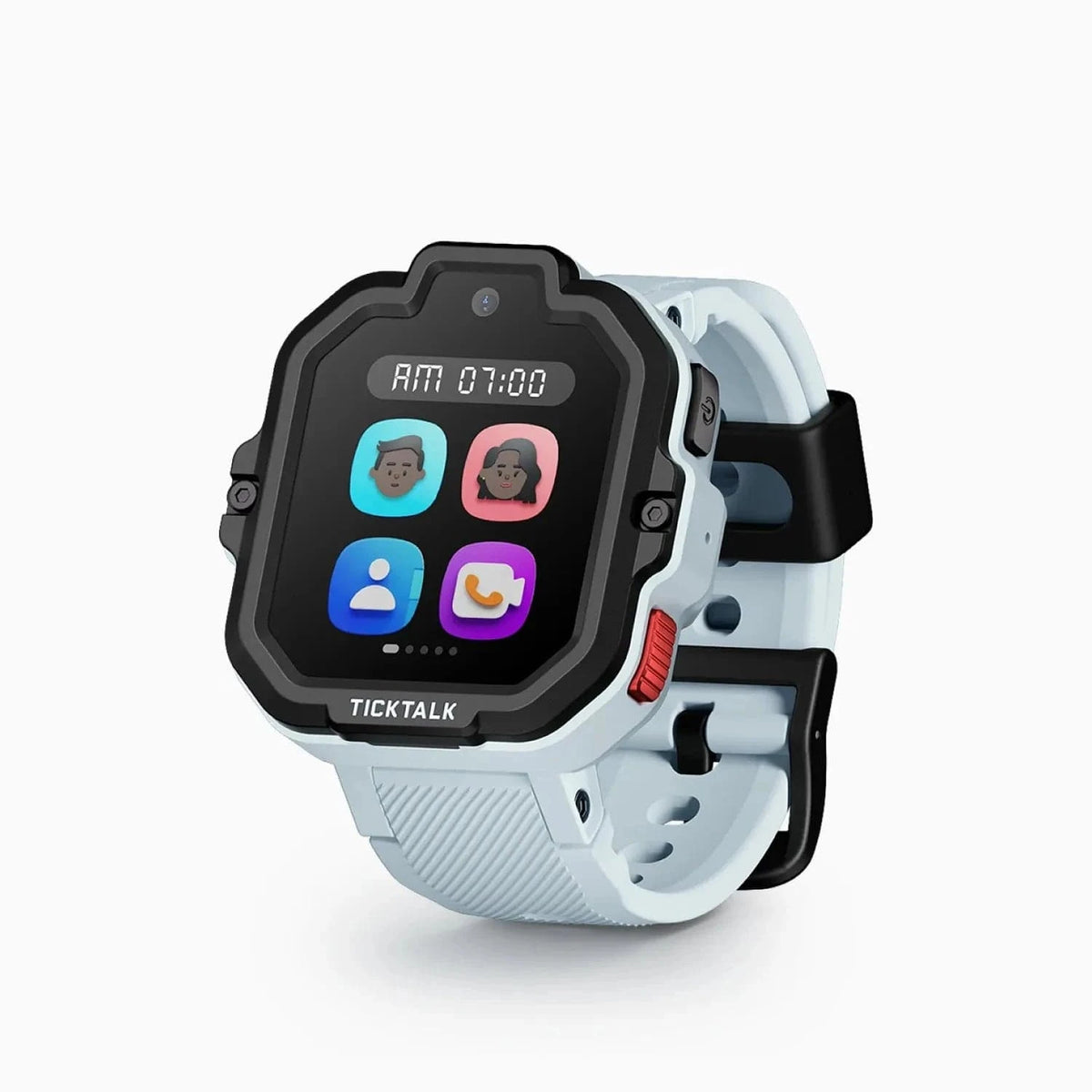
Bark Watch vs TickTalk 5: AI text monitoring for older kids versus HD video calling and value for younger ones. We break down GPS, camera, battery, and cost to name your winner.
Gizmo Watch 3 vs TickTalk 5: we compare GPS accuracy, video calling, battery, water resistance, and carrier lock-in to help you pick the right kids watch.
New review alerts, deal drops, and seasonal buying guides — delivered weekly. No spam, unsubscribe anytime.
No spam. Unsubscribe anytime.