Affiliate Disclosure: This post contains affiliate links. If you purchase through these links, we may earn a small commission at no extra cost to you. This helps support SmartWatchesForKids and allows us to continue creating honest, in-depth content for parents. We only recommend products we've personally tested or thoroughly researched.
The short answer: To set up any kids GPS smartwatch, charge it to at least 50%, insert a compatible nano SIM if your watch needs one (Xplora and the TickTalk 4/5 do; the newer TickTalk 6, Garmin Bounce, Cosmo, Gabb, and Apple use built-in cellular or an eSIM), download the brand's parent app, then pair by scanning the QR code on the watch or box. From there you add approved contacts, set geofences and school mode, and test everything before your kid walks out the door -- plan on 30 to 60 minutes for your first one.
It Should Be Simple, But It Never Is
You bought the watch. Your kid is bouncing off the walls with excitement. You crack open the box, pull out the quickstart guide — a single folded sheet with diagrams that look like they were drawn in 1997 — and that's when the fun begins.
Which way does the SIM card go in? Why does the app want me to scan a QR code that's printed on a sticker I already threw away? Why is the GPS saying my kid is three blocks away when she's sitting right next to me? And what on earth is an APN setting?
I get it. I've been through this process more than 20 times across every major kids smartwatch brand, and I can tell you with confidence: the setup experience is the worst part of owning one of these watches. The good news? Once you get through it, most of these watches work great and genuinely make life easier.
This guide is everything I wish someone had handed me the first time. I'll walk you through every step, brand by brand, and flag the exact spots where things tend to go sideways. Whether you're setting up an Xplora, a Garmin Bounce, a TickTalk, or any other kids GPS watch, this is your playbook.
Let's get this thing working.
Before You Start: What You'll Need
Before you rip the box open, gather everything in one place. Trying to hunt down a SIM card activation number or a WiFi password mid-setup is a guaranteed way to lose momentum.
Here's your checklist:
- The watch itself (obviously)
- The charging cable that came with it — these are almost always proprietary, so don't lose it
- Your smartphone (iPhone or Android)
- A stable WiFi connection — for app downloads and firmware updates
- A nano SIM card with an active data plan (if your watch requires one — more on this below)
- The parent/companion app downloaded on your phone — do this ahead of time
- The QR code or device ID — usually on a sticker on the watch back, inside the SIM tray, or on the box
- 30 to 60 minutes of uninterrupted time — seriously, don't try to squeeze this in between dinner and bedtime
One more thing: do this setup without your kid hovering over your shoulder if possible. Kids get impatient fast, and you'll feel rushed. Get the watch fully configured, test it, and then hand it over as a finished product. Trust me on this one.
Step 1: Charge the Watch First
This sounds painfully obvious, but I'm putting it first because I've watched people skip it and waste an hour troubleshooting a "broken" watch that just had a dead battery.
Plug in the watch and charge it to at least 50% before you do anything else. Some watches — the TickTalk 4 and several Xplora models in particular — will refuse to power on or complete activation if the battery is below 30%. The Xplora X6Play is especially stubborn about this.
Most kids smartwatches take between 1.5 to 2.5 hours for a full charge. Use this time to download the parent app and read ahead in this guide.
A few charging tips while we're here:
- Make sure the magnetic charger is properly aligned. Most kids watches use a magnetic pogo-pin charger that snaps onto the back. If it's slightly off, it'll look connected but won't charge.
- Check for a charging indicator. You should see a battery icon or a small LED light. If you see nothing after 5 minutes, try repositioning the charger.
- Use a standard USB power source. A phone charger or laptop USB port works fine. Avoid fast-charging bricks — most kids watches don't support fast charging and some can actually behave erratically with higher-wattage adapters.
Step 2: Insert the SIM Card (If Your Watch Needs One)
This is the step that trips up the most parents, so let's clear up the confusion.
Which Watches Need a Physical SIM Card?
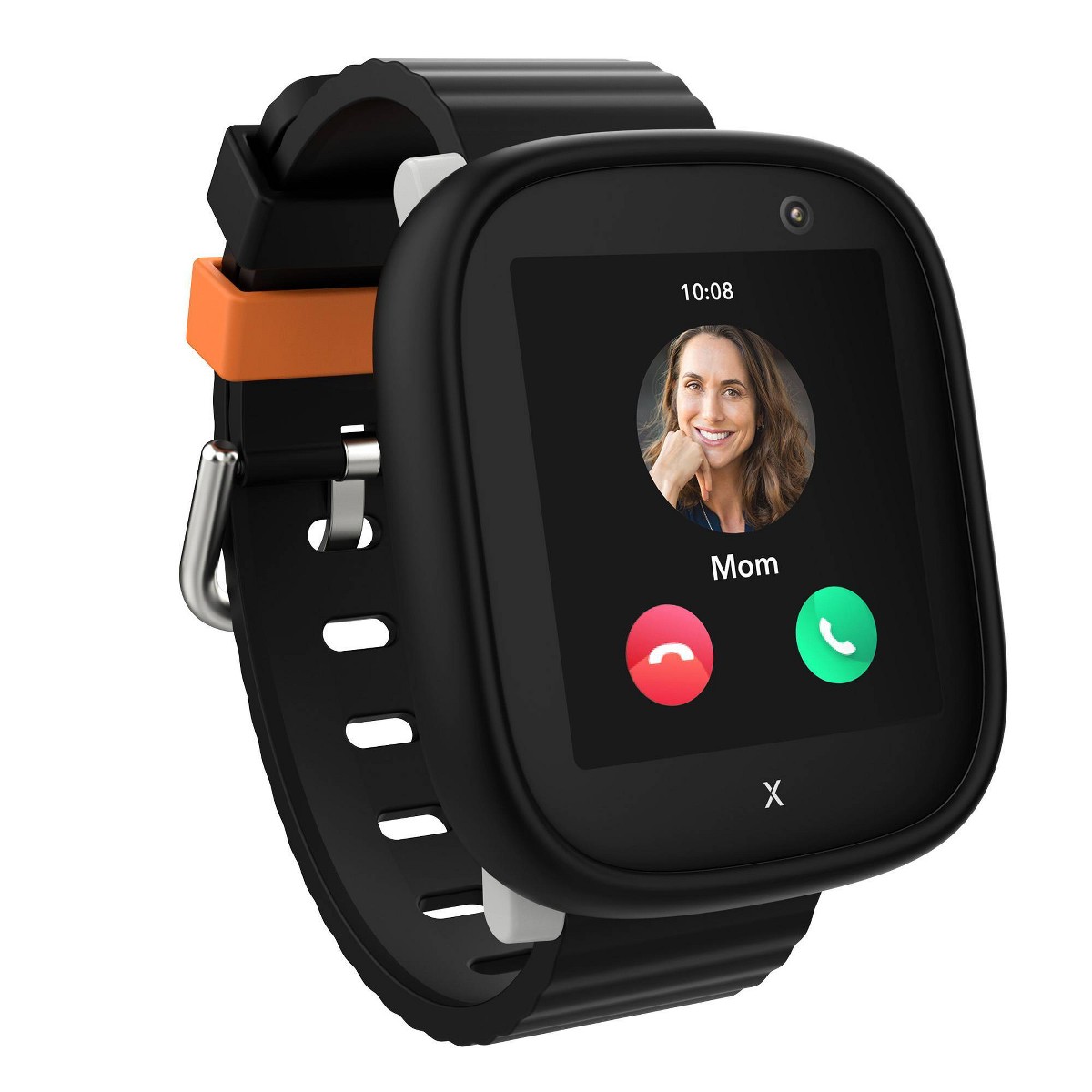
- Xplora X6Play, XGO3 — Yes, nano SIM required
- TickTalk 4, TickTalk 5 — Yes, nano SIM required
- TickTalk 6 — No, it has a built-in eSIM activated on a TickTalk Wireless plan
- Cosmo JrTrack 2 — No, it has an embedded SIM (built-in cellular through Cosmo's own plan)
- Gabb Watch 3e — No, comes with Gabb's own service plan
- Garmin Bounce — No, uses an embedded SIM through Garmin's data plan
- Apple Watch SE (Family Setup) — Depends on the model; cellular versions use an eSIM activated through your carrier
If your watch has an embedded SIM or eSIM, skip ahead to Step 3. You'll activate cellular service through the companion app or your carrier during the pairing process.
Getting a Compatible SIM Card
For watches that need a physical nano SIM, you need a card with talk, text, and data — data is non-negotiable because that's how the watch sends GPS locations and receives commands from the parent app.
Here's what works in the US:
- T-Mobile or T-Mobile MVNOs (like Mint Mobile, Ultra Mobile) — These work with the widest range of kids watches. If you're not sure, start here.
- AT&T — Works with most watches, but some budget models only support T-Mobile bands.
- Verizon — Very limited. Almost no kids smartwatch works on Verizon's network. The Gizmo watches are the exception: the newer Gizmo Watch 4 and the still-sold, cheaper Gizmo Watch 3 are Verizon exclusives sold directly by Verizon, not bring-your-own-SIM watches. No TickTalk model works on Verizon.
My recommendation: Grab a T-Mobile prepaid SIM kit or a Mint Mobile starter SIM. Mint runs on T-Mobile's network and offers affordable data plans starting around $15/month. Activate the SIM in a phone first to make sure it's working, then move it to the watch.
Inserting the SIM
- Power off the watch.
- Locate the SIM tray — it's usually on the side, sometimes hidden behind a rubber flap for waterproofing.
- Use the SIM tool from the box (or a paperclip) to pop open the tray.
- Place the nano SIM chip-side down, gold contacts facing the watch back. The orientation matters — if the watch doesn't detect the SIM, try flipping it.
- Slide the tray back in gently. Don't force it.
- Power the watch on and wait 1-2 minutes for it to find the network. You should see signal bars appear.
If the watch can't find the network, don't panic — we'll cover that in the troubleshooting section below.
Step 3: Download the Parent App
Every kids smartwatch has its own companion app that you'll install on your phone. This is your command center — it's where you'll manage contacts, set up geofences, check your kid's location, and adjust settings. For a full walkthrough of the tracking side, see how to see your child's location from your phone.
Here are the apps by brand:
Download the correct app before you start pairing. I've seen parents accidentally download a third-party app with a similar name and waste 20 minutes wondering why nothing works. Go to the official brand website if you're unsure — they all have direct app store links.
Create your account in the app ahead of time if possible. Most apps let you register with an email and set a password before you even touch the watch. This saves a step during the pairing process.
Step 4: Create Your Account and Pair the Watch
Now for the moment of truth — connecting the watch to your phone through the parent app. The process varies by brand, but here's the general flow:
- Open the parent app and sign in (or create your account).
- Tap "Add Device" or "Set Up New Watch."
- Scan the QR code on the watch or its packaging. Most brands use a QR code printed on a sticker on the back of the watch, inside the SIM tray, or on the box itself. Some apps will ask you to manually enter a device ID or IMEI number instead.
- Follow the on-screen prompts to name the device, enter your child's name and age, and set your role (admin/parent).
- Wait for the watch and app to sync. This can take anywhere from 30 seconds to several minutes. The watch usually needs to be powered on, connected to cellular or WiFi, and within Bluetooth range of your phone.
Common Pairing Issues
- QR code won't scan: Make sure your phone camera is clean and the QR code is flat and well-lit. If it still won't scan, look for a manual entry option — you'll type in the code printed below the QR graphic.
- "Device not found" error: The watch must be powered on and connected to a network. If you just inserted the SIM, give it 2-3 minutes to register on the cellular network before retrying.
- App says the device is already registered: This happens with secondhand watches. You'll need to contact the brand's support to have the previous owner's account unlinked. This is especially common with Xplora and TickTalk.
- Pairing seems stuck: Force-close the app, restart the watch (hold the power button for 10 seconds), and try again. A surprising number of pairing issues resolve with a simple restart on both ends.
Once the watch is paired, the first thing you should do is add contacts. On most kids smartwatches, your child can only call or receive calls from numbers you've approved in the app. This is a feature, not a bug — it's one of the key safety features that makes these watches parent-friendly.
Here's how to handle contacts:
- Add yourself first. You should be contact number one.
- Add your co-parent, partner, or another trusted adult. Having at least two reachable adults is important.
- Add 3-5 other trusted contacts — grandparents, a babysitter, an older sibling. Most watches support 10-50 approved contacts.
- Set your emergency/SOS contacts. Most watches have a dedicated SOS button (usually a long-press on the side button). You can assign 1-3 numbers that the watch will call automatically when SOS is triggered. Make sure these are numbers that will actually be answered — your cell phone, not your work landline.
Tips for Younger Kids
If your child is 5-7 years old, they probably can't read contact names yet. Most watch apps let you assign photos to each contact so your kid sees a picture of Grandma instead of the word "Grandma." Take a few minutes to add photos — it makes a huge difference in usability. For more on age-appropriate picks, check out our guide to the best smartwatches for 5-year-olds.
This is where kids smartwatches really earn their keep. Take 10-15 minutes to properly set up these features — you'll thank yourself later.
Geofencing (Safe Zones)
Geofencing lets you draw virtual boundaries on a map and get alerts when your child enters or leaves them. Most parents set up at least three zones:
- Home — a radius around your house (start with 200-300 meters)
- School — the school campus
- A regular activity location — practice field, grandparent's house, etc.
To set a geofence in most apps, you'll tap a map, drop a pin, and drag a circle to set the radius. Start with a larger radius than you think you need — GPS accuracy on these watches is typically within 30-100 meters, so a tight geofence will send you false alerts constantly.
School Mode / Do Not Disturb
Set up school mode to disable calls, messages, and games during school hours. Most apps let you set a weekly schedule — something like Monday through Friday, 8:00 AM to 3:00 PM. During school mode, the watch typically still tracks location but won't ring, vibrate, or let your child access apps.
SOS Settings
Double-check that SOS is configured correctly:
- The right emergency contacts are assigned.
- You understand how SOS works on your specific watch (some call contacts in sequence, some call all simultaneously, some send a text with GPS coordinates).
- Test it before your kid wears the watch out of the house (we'll do this in Step 8).
Location Update Frequency
Most apps let you choose how often the watch reports its location — every 1 minute, 5 minutes, 10 minutes, or on demand. More frequent updates give you better tracking but drain the battery faster. I recommend every 10 minutes as a starting point. You can always request a real-time location ping from the app whenever you need one.
If battery life is a concern, and it usually is, our kids smartwatch buying guide covers what to expect from different models.
Step 7: Customize for Your Kid
The watch is functional, but your kid is going to want to make it theirs. Spend a few minutes on these finishing touches:
- Watch face: Most watches offer several faces to choose from — digital, analog, character-themed. Let your kid pick. It's a small thing that makes them more excited to wear it.
- Notification sounds: Some watches let you change ringtones and alert tones. If your kid is sound-sensitive, preview these before handing the watch over.
- Step goals: If the watch has a fitness tracker (Garmin Bounce and Xplora are great for this), set a daily step goal. The default is usually 6,000-8,000 steps, which is reasonable for most school-age kids. Check out our roundup of the best fitness trackers for tweens if activity tracking is a priority.
- Wallpaper or profile photo: Some watches let you upload a photo to the home screen. A picture of the family pet goes a long way.
Step 8: Test Everything Before Your Kid Walks Out the Door
Do not skip this step. I repeat: do not skip this step. Run through this checklist before your child leaves the house with the watch:
- Make a test call from the watch to your phone. Can you hear each other clearly? Is the volume adequate?
- Call the watch from your phone. Does it ring? Can your kid answer it?
- Send a text or voice message (if supported). Does it come through?
- Trigger the SOS button. Hold the SOS button and make sure your phone receives the alert. Then dismiss it so everyone calms down.
- Check GPS accuracy. Open the parent app and see where the watch says your kid is. Is it showing your actual address, or somewhere three streets over? If it's way off, step outside — GPS needs a clear view of the sky to get an accurate fix. Indoor GPS is almost always less precise.
- Walk to the edge of a geofence. If possible, walk with your kid past the boundary of your "Home" safe zone and check if you receive an alert.
- Verify school mode. Set a test school mode window for the current time and confirm the watch restricts access as expected.
If everything checks out, congratulations — you're done. If something's off, read on.
Common Setup Problems and Fixes
I've encountered every one of these issues personally. Here are the solutions that actually work.
Watch Won't Connect to the Cellular Network
Symptoms: No signal bars, "No Service," or "SIM not detected."
Fixes:
- Remove the SIM, inspect it for damage, and reinsert it. Make sure it clicks into place and is oriented correctly.
- Confirm the SIM is activated. Call the carrier if you're unsure. A surprising number of prepaid SIMs require a separate activation step after purchase.
- Check carrier compatibility. If you're using a Verizon SIM in a watch that only supports T-Mobile/AT&T bands, it simply won't connect.
- Go to the watch's settings and look for "APN settings." Some watches need you to manually enter the APN for your carrier. Search "[your carrier] APN settings" online and enter the values exactly.
- Restart the watch. After inserting a new SIM, a restart often triggers the network search.
GPS Showing Wrong Location
Symptoms: The map shows your kid at a location they're not at, or the location jumps around erratically.
Fixes:
- Go outside. GPS requires satellite signals that don't penetrate buildings well. The first GPS fix after setup can take 3-5 minutes outdoors.
- Wait for it to stabilize. The first few location reports after activating a watch are often inaccurate. Give it 15-30 minutes of outdoor use to calibrate.
- Check your location update interval. If it's set to every 10 minutes, the displayed location could be up to 10 minutes stale.
- Turn on WiFi positioning in the app if the option exists. Some watches use nearby WiFi networks to improve indoor location accuracy.
Can't Receive Calls on the Watch
Symptoms: You call the watch number and it goes straight to voicemail, rings but doesn't connect, or the watch doesn't ring at all.
Fixes:
- Make sure your number is in the watch's approved contacts list. Most watches reject calls from unknown numbers by default.
- Check if school mode or do-not-disturb is active. These modes block incoming calls.
- Verify the watch has cellular signal (check for signal bars on the display).
- Confirm the SIM card has an active calling plan, not just a data-only plan. Data-only SIMs won't support voice calls.
App Won't Pair with Watch
Symptoms: Scanning the QR code does nothing, or the app says it can't find the device.
Fixes:
- Make sure the watch is powered on and showing the home screen (not stuck on a boot logo).
- Check that Bluetooth is enabled on your phone.
- Verify you're using the correct app for your watch brand.
- Try manually entering the device ID instead of scanning the QR code.
- Check your phone's app permissions — the companion app needs access to your camera (for QR scanning), location services, Bluetooth, and notifications.
SIM Card Not Recognized
Symptoms: The watch displays a "No SIM" or "Insert SIM" message even though the SIM is physically installed.
Fixes:
- Power off the watch, remove the SIM, clean the gold contacts gently with a soft cloth, and reinsert.
- Try the SIM in a phone to confirm it's working.
- Make sure you're using a nano SIM, not a micro SIM jammed into the slot. The sizes look similar but they're not interchangeable.
- Some watches require a SIM with 2G/3G support. If your carrier has phased out these networks and the watch relies on them, the SIM won't register.
Battery Draining Fast After Setup
Symptoms: The watch dies in 4-6 hours instead of lasting a full day.
Fixes:
- This is normal for the first day or two. The watch is downloading updates, calibrating GPS, and syncing data. Battery life typically improves after 2-3 charge cycles.
- Reduce your location update frequency from every minute to every 5 or 10 minutes.
- Lower the screen brightness.
- Disable features you're not using (pedometer, WiFi scanning, always-on display).
- If battery life is still terrible after a week, you may have a weak cellular signal at your location, which forces the radio to work harder. Not much you can do about that except try a different carrier.
Brand-Specific Setup Tips
Here are quick notes for the most popular watches, based on my hands-on experience.
Xplora (X6Play, XGO3)
- You must use a nano SIM with data. T-Mobile or a T-Mobile MVNO is your safest bet.
- The QR code for pairing is on a sticker inside the SIM tray compartment. Do not throw this sticker away.
- After pairing, the watch will likely download a firmware update that takes 10-15 minutes. Let it finish before configuring anything.
- The Xplora app can be slow — give it patience during the initial sync.
Check out our full Garmin Bounce vs. Xplora X6Play comparison to see how these two stack up.
Garmin Bounce
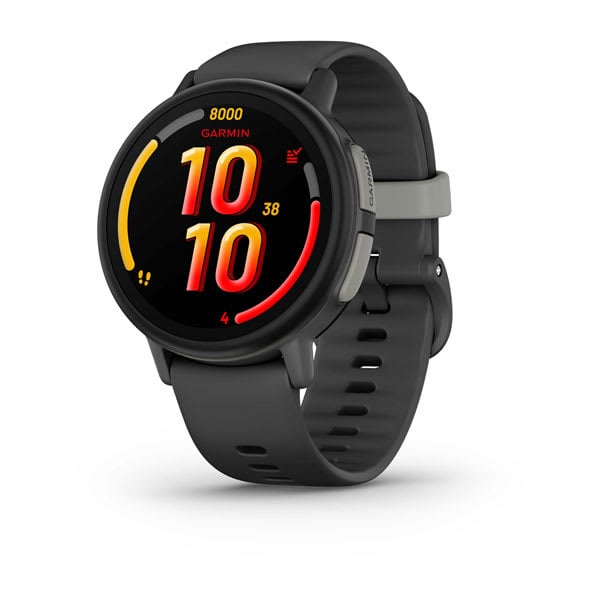
- No SIM card needed — cellular is built in and managed through a Garmin data plan (around $10/month).
- Setup goes through the Garmin Jr. app, and you'll also need a Garmin Connect account.
- The Garmin Bounce is one of the smoother setup experiences out there. The app walks you through each step clearly.
- GPS accuracy is excellent once the watch gets its first satellite fix outdoors.
If you want a GPS smartwatch that you can set up in under 20 minutes, the Bounce is hard to beat.
TickTalk (TickTalk 4 and 5)
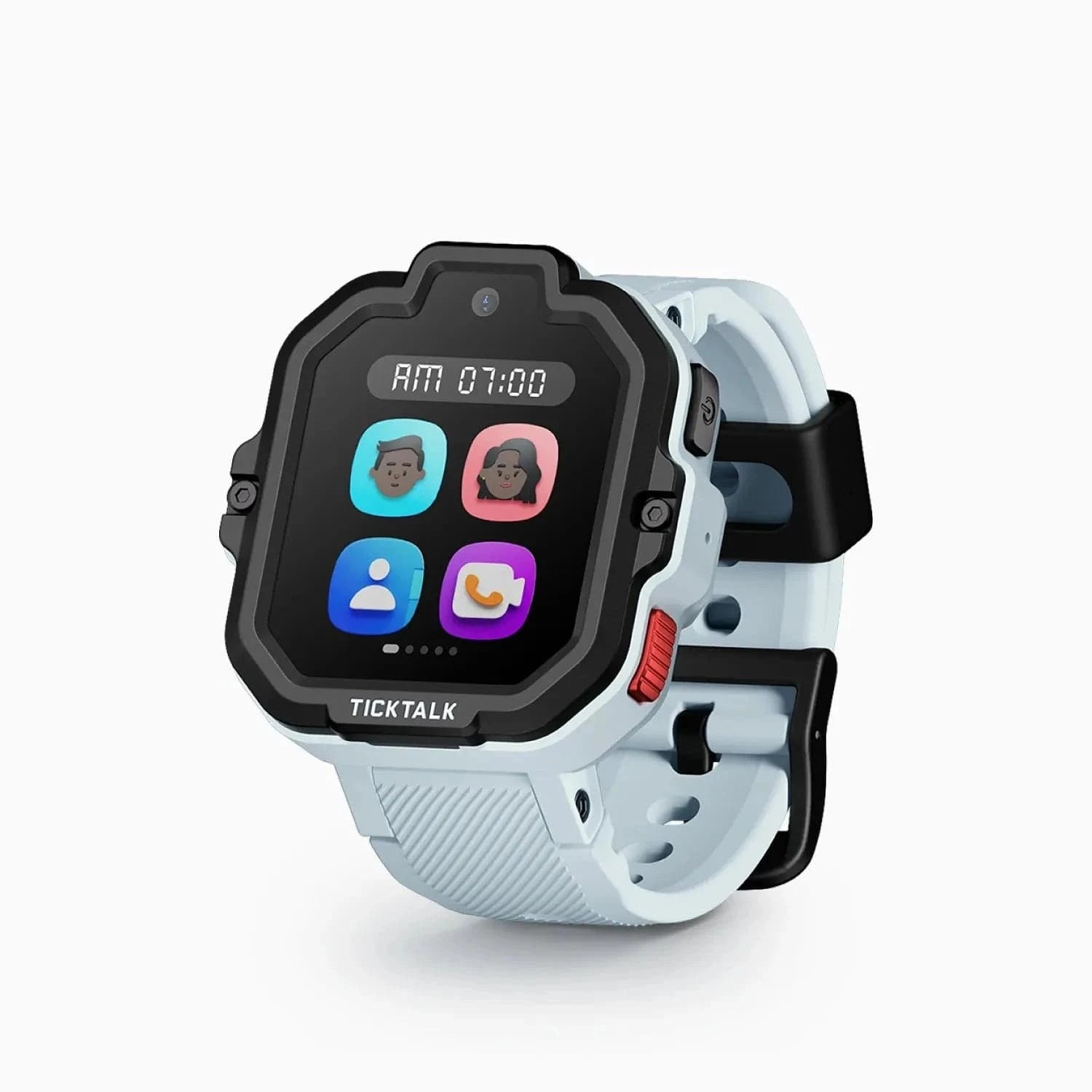
- Requires a nano SIM. The TickTalk 4 supports T-Mobile, AT&T, and MVNOs on those networks (Mint Mobile, Red Pocket). It does not work on Verizon.
- The SIM tray is accessed by removing the back cover with a small screwdriver (included). It feels a bit nerve-wracking the first time, but it's fine.
- Read our full TickTalk 4 review for setup details and real-world performance.
- Note: The TickTalk 4 has been discontinued and is no longer sold new. These setup steps still apply if you already own one, but new buyers should look at its successors: the TickTalk 5, which uses the same setup process and is back in stock on Amazon, or the newer TickTalk 6.
- TickTalk's video calling feature requires a solid LTE connection. If calls are choppy, it's almost always a signal strength issue.
The TickTalk 5 is one of the most feature-rich options if your child wants video calling and messaging.
Cosmo JrTrack
- Embedded SIM — no SIM card to install. Cellular service is bundled with a monthly Cosmo plan.
- Setup is done through the Cosmo Mission Control app, and it's fairly straightforward.
- The JrTrack 2 has a unique "Mission" system for chores and tasks. Explore this in the app after basic setup is complete.
Gabb Watch
- No SIM needed — Gabb provides its own cellular service.
- Activation is done online at Gabb's website, then you pair through the Gabb Go app.
- The Gabb ecosystem is intentionally simple and locked down. If you want minimal distractions with solid calling and GPS, it's a great choice, though at $229.99 the Gabb Watch 3e is not a budget buy -- see our picks under $100 if price matters most.
Apple Watch (Family Setup)
- This is the most complex setup process on this list, but also the most powerful.
- You need an iPhone 6s or later with iOS 14+ to set up Family Setup. Your child does not need their own iPhone.
- You'll configure the watch through the Watch app on your iPhone, then use Family Setup to create a managed Apple ID for your child.
- Cellular requires an eSIM through a supported carrier (AT&T, T-Mobile, Verizon all work). You'll add the cellular plan during setup.
- The Apple Watch SE is the most cost-effective option for Family Setup. The Ultra and higher-end models are overkill for kids.
- This is the best option for families already deep in the Apple ecosystem, but it's worth weighing the smartwatch vs. phone decision before committing to the Apple Watch price point.
Frequently Asked Questions
Do all kids smartwatches need a SIM card?
No -- watches like the Garmin Bounce, Cosmo JrTrack, and Gabb Watch have embedded SIMs or built-in cellular service. You'll pay a monthly service fee instead of buying your own SIM. Watches from Xplora and TickTalk require a separate nano SIM card with an active plan from a compatible carrier.
Which cell phone carrier works best with kids smartwatches?
T-Mobile (or any carrier running on T-Mobile's network, like Mint Mobile) has the broadest compatibility with kids smartwatches. AT&T is the second-best option. Verizon compatibility is limited — always check the watch manufacturer's website before buying a Verizon SIM.
Can I set up a kids smartwatch without cellular service?
Not really -- while some watches run basic features over WiFi, you lose GPS tracking, calling, SOS alerts, and geofencing without cellular. Technically, some watches will function over WiFi for basic features like step counting or telling time. But without cellular, you lose the core features — GPS tracking, calling, SOS alerts, and geofencing. These watches are designed around cellular connectivity, so I wouldn't recommend skipping it.
How long does setup typically take?
Plan for 30-60 minutes for your first watch. If you've done it before, you can get through it in 15-20 minutes. The biggest time sinks are SIM card activation (if you're doing it for the first time), firmware updates (which can take 10-15 minutes to download and install), and troubleshooting APN settings.
Can two parents both have the app and manage the watch?
Yes, almost every kids smartwatch app supports multiple parent/admin accounts. In the Xplora app, for example, the primary account holder can invite a second parent by sending an in-app invitation. Both parents can view location, call the watch, and manage settings. Some apps give the primary admin slightly more control (like the ability to factory reset the watch remotely).
What happens if my kid loses the watch or it gets stolen?
Most parent apps show the watch's last known location on the map. Some watches also support a remote "find my watch" feature that makes the watch ring loudly even if it's on silent. If the watch is truly gone, you can remotely lock it or wipe it from most apps. Contact the watch brand's support and your SIM carrier to suspend service.
Do I need to set up the watch again after a factory reset?
Yes -- a factory reset wipes all settings, contacts, and pairings. You'll need to go through the full pairing process again from Step 4. However, your parent app account and your geofences/settings are usually saved in the cloud, so reconfiguring in the app is quicker the second time around.
Can my child text from the watch?
It depends on the watch. The TickTalk 4 and 5 support voice messages and preset text replies. The Apple Watch supports full dictation and even a tiny keyboard. The Garmin Bounce supports preset text messages only. Most watches aimed at younger kids (ages 5-8) limit texting to voice messages or emoji reactions, which honestly works fine for that age group.
Wrapping Up
Setting up a kids smartwatch is one of those tasks that feels way harder than it should be — right up until the moment everything clicks and starts working. Then you get that first GPS ping from the school parking lot, or your kid calls you from their wrist to say they got to their friend's house safely, and suddenly every frustrating minute of setup was worth it.
The biggest piece of advice I can give: don't rush it. Set aside an evening after the kids go to bed, pour yourself a coffee (or something stronger), and work through it methodically. The steps in this guide are the same ones I follow every single time, and they work.
If you're still deciding which watch to buy in the first place, start with our kids smartwatch buying guide for a breakdown of what matters and what doesn't. If you're setting up a watch ahead of a family trip, our spring break travel guide for kids smartwatches has extra tips on getting your watch travel-ready, including coverage checks and international considerations. And if the setup process on your specific watch is giving you trouble beyond what's covered here, drop a comment below — chances are I've seen your exact issue before.
If you have not purchased a watch yet, our deals page has current pricing on every model mentioned in this guide.
Setting up before the first day of school? Our back-to-school guide adds a pre-first-day checklist — when to buy, how to configure school mode for your child's exact bell schedule, and the one email to the teacher that prevents most confiscation stories.
If Something Isn't Working
Setup is where most problems start, but a few show up later. These go deep on the ones we get asked about most:
- Kids smartwatch won't connect or activate? — SIM and eSIM activation, plan provisioning delays, pairing failures, and how to tell when a unit is genuinely defective and should go back.
- GPS not accurate? — why the dot lands on the wrong street, what update intervals actually control, and the fixes that meaningfully improve it.
- Battery draining fast? — what really drains these watches (signal hunting in weak coverage is the big one) and what to trade away for runtime.
- How to set up school mode — the feature that decides whether the watch gets allowed or confiscated, configured properly.
Good luck. You've got this.