How-To Guides|
How to Set Up a Kids GPS Smartwatch: Complete Parent's Guide (2026)
SIM cards, parent apps, contact lists, geofencing — setting up a kids smartwatch can be confusing. This step-by-step guide covers every brand and common pitfalls.
How to see your child's location from your phone using a kids smartwatch -- live GPS tracking, location history, safe-zone alerts, and honest accuracy limits.
| Watch | Price | Rating | Ages | Best For | |
|---|---|---|---|---|---|
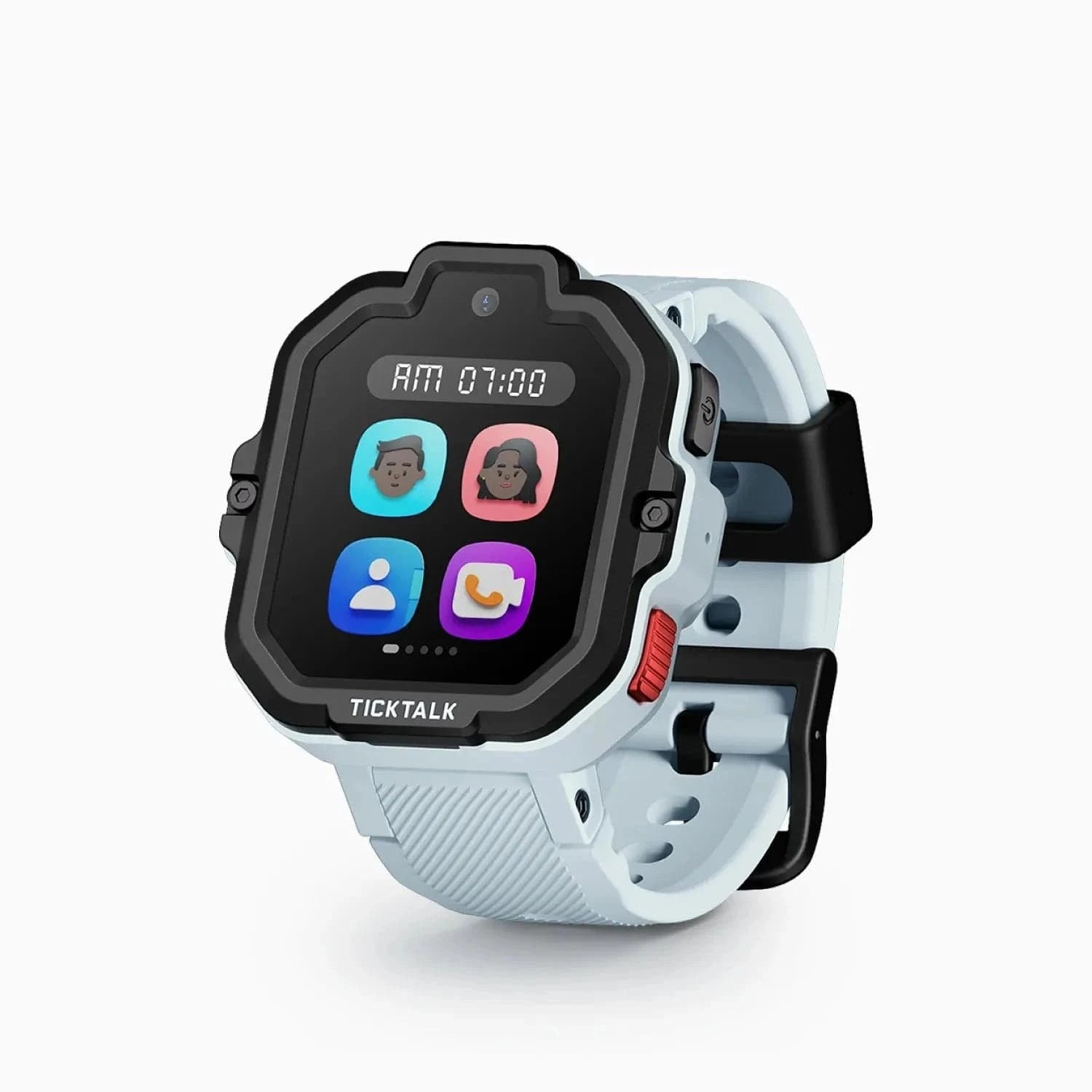
| TickTalk 5 | $159.99 | ★★★★☆ 4.3 | 3-12 | 3-12 | |
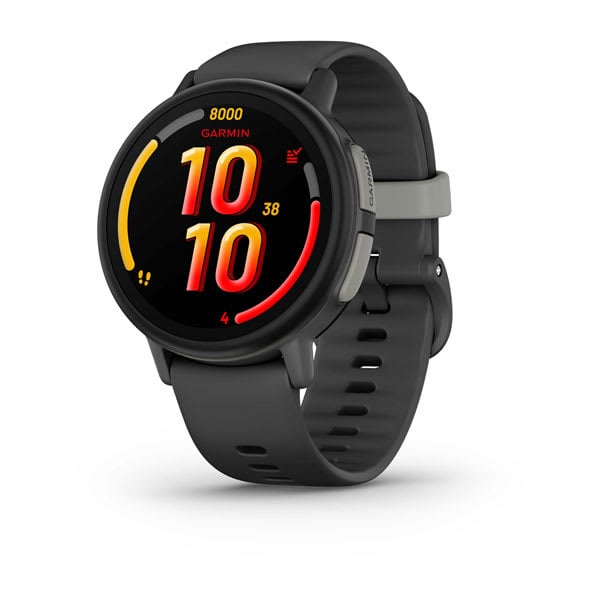
| Garmin Bounce 2 | $299.99 | ★★★★☆ 4.3 | 6-11 | Cleanest live-tracking map | |
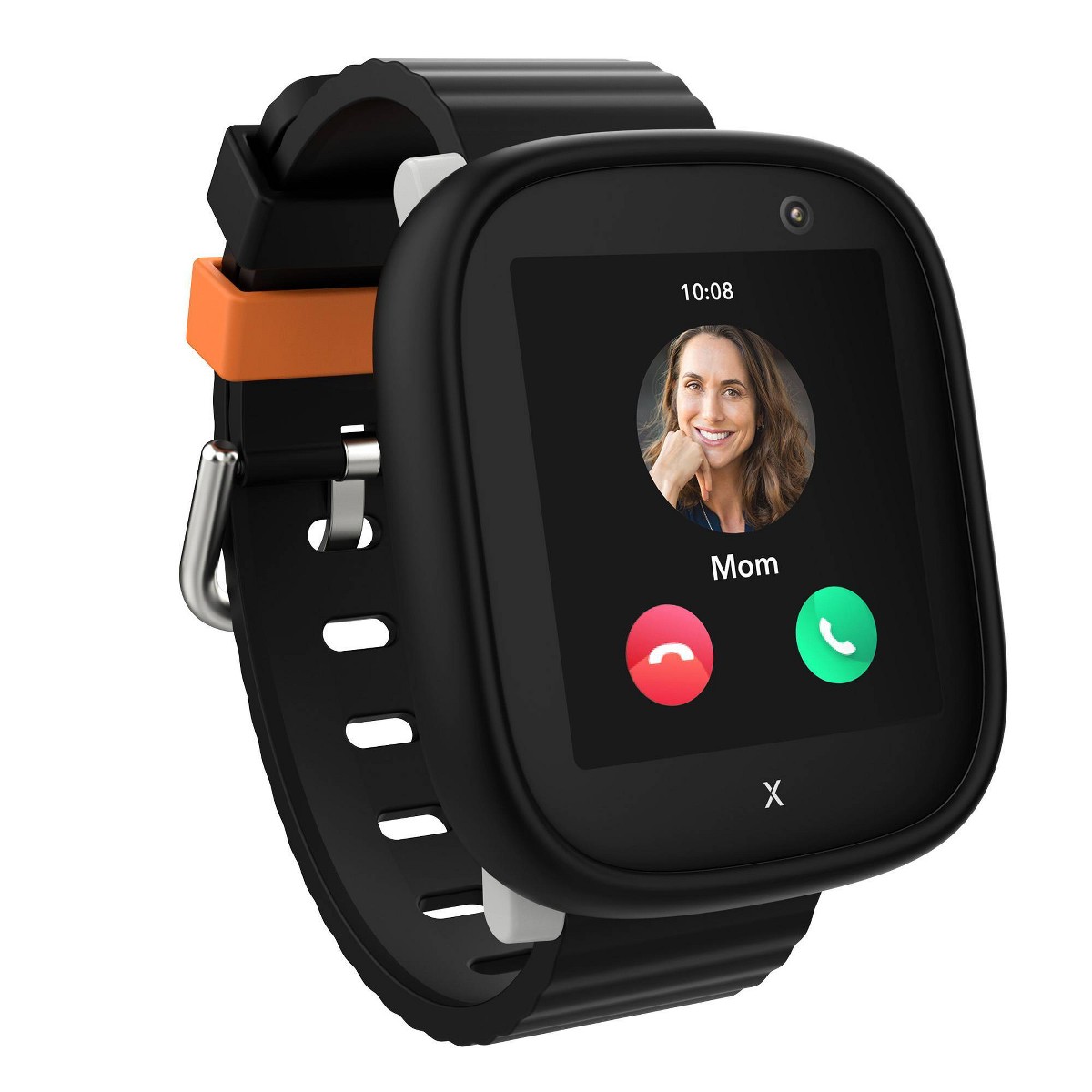
| Xplora X6Play | $169.99 | ★★★½☆ 3.8 | 5-12 | Flexible SIM, solid safe zones |
Prices may vary. As an Amazon Associate we earn from qualifying purchases.
Affiliate Disclosure: This post contains affiliate links. If you purchase through these links, we may earn a small commission at no extra cost to you. This helps support SmartWatchesForKids and allows us to continue creating honest, in-depth content for parents. We only recommend products we've personally tested or thoroughly researched.
The short answer: To see your child's location, open the companion app that came with their smartwatch (TickTalk, Garmin Jr., Xplora, and so on), tap the map or "Locate" button, and the watch reports its current GPS position to your phone -- usually within a few seconds. You can request a live "real-time" update, scroll back through the day's location history, and set safe zones so the app pings you automatically when your child arrives at or leaves places like school or home. Just know the honest limit up front: outdoors, GPS is accurate to roughly 10 to 20 feet, but indoors it drops to "somewhere in that building" -- not a specific room. That's true of every kids smartwatch, no matter the brand or price.
Every cellular kids smartwatch works on the same basic idea. The watch has a GPS chip (plus cell-tower and WiFi positioning as backups) and its own data connection. It figures out where it is, sends that location over the cellular network to the brand's servers, and your phone app pulls it down onto a map. You're not connecting to the watch directly -- you're checking a location the watch already reported.
That's why a watch needs an active cellular plan to be trackable away from home. No signal, no location. It's also why the experience is only as good as the app: two watches with nearly identical hardware can feel completely different depending on how fast and how cleanly their apps show you the map.
I've set up and lived with more than 20 of these watches, and in this guide I'll walk you through exactly how to see your kid's location, the difference between a live ping and a periodic update, how to read location history, and how to set safe-zone alerts so the app does the watching for you. I'll also be straight with you about what these trackers can and can't do.
It helps to understand the plumbing, because it explains almost every quirk you'll run into.
A kids smartwatch pinpoints itself using three signals, usually blended together:
The watch calculates its position, then sends it over its own cellular data connection to the manufacturer's servers. Your phone app reads that position and drops a pin on a map. The whole round trip usually takes a few seconds when signal is good.
The takeaway: a kids smartwatch is a reporting device, not a magic beacon. It can only tell you where it was the last time it got a clean fix and had a signal to send it. Understanding that one sentence will save you a lot of confusion.
Once the watch is set up and paired (if you haven't done that yet, start with my step-by-step setup guide), checking location is genuinely simple:
A couple of things worth knowing:
This is the distinction that confuses the most parents, so let's make it clear.
Periodic updates are the default on nearly every watch. To save battery and data, the watch reports its location on a schedule -- every 10 minutes is common, sometimes adjustable down to every 1 or 5 minutes. Between those check-ins, the app shows you the last known spot. This is what you'll use 95% of the time, and it's plenty for "Is she at school? Did he make it to practice?"
Live (real-time) tracking is a mode you switch on deliberately, usually with a button like "Live Tracking," "Real-Time," or "Follow." When it's active, the watch fixes and reports its position continuously -- often every few seconds -- so you can watch the pin move down the sidewalk in near real time. It's the mode you want if a pickup is running late or you're meeting up in a crowded place.
The trade-off is simple: live tracking drains the watch battery fast -- sometimes noticeably within an hour -- because the GPS chip and cellular radio are working nonstop. That's why no watch leaves it on all day. Turn it on when you need it, turn it off when you don't.
| Mode | Update frequency | Battery impact | When to use it |
|---|---|---|---|
| Periodic updates | Every ~1-10 min | Low | Everyday "where are they" checks |
| Live / real-time | Every few seconds | High | Active pickups, meetups, "on the move" moments |
Every good kids smartwatch app keeps a location history -- a breadcrumb trail of where the watch has been, usually for the past 24 hours to 7 days depending on the brand.
To use it, open the app, find "History," "Track Record," or a calendar/timeline icon, and pick a day. You'll see a route line and time-stamped stops: left home 7:52 a.m., arrived school 8:14 a.m., and so on. It's genuinely useful for answering "Did he go straight to Grandma's after school?" without a single interrogating text.
Two honest caveats:
Here's the feature that changes how you actually use one of these watches. Instead of opening the app to check, you set up safe zones (also called geofences) and the app pings you automatically.
A safe zone is a circle you draw on the map around a place that matters -- home, school, Grandma's, the soccer field. You give it a radius, and you choose whether to be alerted on arrival, on departure, or both.
To set one up:
Now you get a push notification like "Ava arrived at School" without lifting a finger. Most apps let you create several zones.
One piece of hard-won advice: make the radius bigger than you think you need. Because GPS drifts (especially near big buildings), a too-tight 100-foot circle around the school will fire false "left school / arrived school" alerts all day as the pin wobbles across the boundary. A radius of about 500 feet to a quarter-mile gives you reliable alerts without the noise. If you're getting phantom notifications, widening the zone is almost always the fix.
I won't oversell this, because a false sense of precision is worse than knowing the real limits.
Outdoors, under open sky, a kids smartwatch is accurate to roughly 10 to 20 feet. That's excellent -- easily enough to see your child is at the park, on the right block, or on the correct side of the street.
Indoors, accuracy collapses to "they're in that building" -- not "room 204." Satellites can't reach through a roof reliably, so the watch falls back on cell towers and WiFi, which place it within the general footprint of the structure. Inside a school, a mall, or a big-box store, the pin can sit tens of yards off, or drift to a neighboring building.
And this is the part I want to be crystal clear about: this is true of every kids smartwatch, from the cheapest to the most expensive. A $250 watch does not "see inside" a school any better than a $130 one. The physics are the same. Anyone promising room-level indoor tracking is selling you something that doesn't exist.
Other things that legitimately reduce accuracy: dense downtown areas, thick tree cover, being in a moving car, and dead zones with no cellular signal to send the location at all. If your pin looks wrong, it's usually one of these -- not a broken watch. I go deep on fixes in my guide to why kids smartwatch GPS isn't accurate.
The right mental model: a kids smartwatch answers "roughly where is my child, and are they where they should be?" It does not answer "which exact doorway are they standing in." For the vast majority of parents, roughly-where is exactly what you need.
The hardware is similar across brands, so the tracking experience comes down to the app -- how fast it fetches a location, how clean the map is, and how reliable the safe-zone alerts are. These are the three tracking apps I know best, including one previous-generation watch that is back in stock.
The TickTalk 5 had the most complete tracking experience I'd used. The app fetches locations quickly, the safe-zone setup is straightforward, and live tracking is easy to trigger when you need it. It takes a standard nano-SIM, so you bring your own AT&T or T-Mobile plan (or a budget MVNO like Red Pocket or Mint) -- which keeps your monthly cost flexible. It was my default pick on tracking alone. TickTalk has since replaced it with the TickTalk 6, which drops the nano-SIM for TickTalk's own plan, but the TickTalk 5 is back in stock on Amazon at around $159.99 (October 2026).
The Garmin Bounce 2 leans on Garmin's mapping pedigree, and it shows -- the live map is the smoothest and clearest of the bunch, and the location pings feel snappy. The catch is you don't get to choose a carrier: it runs on Garmin's own managed LTE service (about $9.99/month), bundled in. That's simpler for a lot of parents -- one bill, no SIM shopping -- and the tracking is excellent. Around $299.99.
The Xplora X6Play is the flexible pick: it ships with an Xplora Connect SIM pre-installed (about $12/month on AT&T and T-Mobile networks), and it can also take a third-party GSM SIM, though Xplora doesn't officially support that. The app's safe zones and location history are solid and easy to read, and it also does video calling if that matters to you. The app isn't quite as fast or polished as TickTalk's or Garmin's, which is why I rate it a notch lower, but it's a strong tracker and the SIM flexibility is a real advantage. Around $169.99.
A note on carriers, because it drives tracking reliability: a watch can only report its location if it has service where your child goes. The Apple Watch SE 3 is the exception that works on AT&T, T-Mobile, and Verizon (it uses your own carrier's plan via Family Setup) -- but it requires a parent iPhone. And if you're a Verizon household, note that among purpose-built kids watches only the Gizmo works on Verizon: the newest is the Gizmo Watch 4, with the older Gizmo Watch 3 still sold cheaper. No other kids smartwatch runs on Verizon. For the full breakdown of tracking-focused watches, see my best GPS smartwatches for kids guide.
| Watch | Carrier setup | Tracking-app strength | Approx. price |
|---|---|---|---|
| TickTalk 5 | BYO nano-SIM (AT&T / T-Mobile) | Previous gen; back on Amazon (Oct 2026) | $159.99 |
| Garmin Bounce 2 | Garmin-managed LTE (~$9.99/mo) | Cleanest live map | $299.99 |
| Xplora X6Play | Xplora Connect SIM (AT&T / T-Mobile networks) | Solid, flexible | $169.99 |
Yes -- switch on the "Live" or "Real-Time" tracking mode in the app, and the watch reports its position every few seconds so you can watch the pin move. By default, watches update on a schedule (every few minutes) to save battery. Live mode is for active moments like a late pickup, and you'll want to turn it off afterward because continuous GPS drains the watch battery fast -- sometimes within an hour.
Outdoors it's accurate to about 10 to 20 feet, but indoors it drops to "in the building" rather than a specific room. Under open sky, satellites give a tight fix. Inside schools, malls, or stores, the watch falls back on cell-tower and WiFi positioning, which is far less precise. This limit is identical across every brand and price point -- no kids watch does room-level indoor tracking, no matter what a listing claims.
Yes -- location tracking away from WiFi requires an active cellular plan, because the watch sends its position over the cellular network. Some watches take a SIM you provide (TickTalk 5 and Xplora X6Play run on AT&T or T-Mobile), while others bundle their own service (Garmin Bounce 2 uses Garmin's LTE at about $9.99/month). Without cellular service, a watch can only be located over WiFi at home, which defeats the purpose.
Almost always it's a stale fix -- the watch lost signal or couldn't reach GPS satellites, so the app is showing the last spot it successfully reported. Check the "Updated X ago" timestamp: if it's old, your child is likely indoors or in a dead zone. It usually corrects itself within a minute of getting back under open sky. Dense downtowns, heavy tree cover, and being in a moving car also reduce accuracy temporarily.
Safe zones (geofences) are map circles around key places that trigger an automatic alert when your child arrives or leaves -- and yes, they're the single most useful tracking feature. You get a push like "Leo arrived at School" without opening the app. The one trick: make the radius fairly large (around 500 feet to a quarter-mile). A too-small zone will fire false alerts all day as the GPS pin naturally drifts across a tight boundary.
If you're just getting started, walk through my complete kids smartwatch setup guide first, then read up on why kids smartwatch GPS isn't always accurate so you know what to expect. And if you're still choosing a watch, my roundup of the best GPS smartwatches for kids compares the top trackers side by side.
SIM cards, parent apps, contact lists, geofencing — setting up a kids smartwatch can be confusing. This step-by-step guide covers every brand and common pitfalls.
Your kid's watch shows the wrong street, 300 feet off, or a stale location. Here's exactly why kids smartwatch GPS drifts -- and the fixes that actually work.
School mode decides whether a kids smartwatch gets allowed or confiscated. Here is how to set the hours, handle half days, test it, and email the teacher.
Kids smartwatch dying before pickup? Here is what really drains the battery -- GPS frequency, weak LTE signal, video calls -- and the fixes that add hours back.
Kids smartwatch won't activate, pair, or hold a signal? Work the real causes in order -- SIM, plan, carrier, pairing, coverage -- plus when to just return it.
New review alerts, deal drops, and seasonal buying guides — delivered weekly. No spam, unsubscribe anytime.
No spam. Unsubscribe anytime.