Affiliate Disclosure: This article contains affiliate links. If you purchase through our links, we may earn a small commission at no extra cost to you.
I have set up more of these watches than I can count, and the failure pattern is always the same. The box gets opened, the kid is vibrating with excitement, and forty minutes later the watch sits on the counter saying "No Service."
The good news: the overwhelming majority of these failures are not broken hardware. They are activation timing, a carrier mismatch, or a pairing step that silently did not finish. Defects are real but rare -- suspect them last.
Work the list below in order. If you have not started setup at all, read our full setup guide first; this page is for when setup has already gone sideways.
Start Here: Which Failure Are You Actually Having?
"It won't connect" covers four problems with four different fixes.
One observation halves the possibilities: if the watch shows signal bars but the app says it is offline, that is an app or account problem, not a cellular one.
Step 1: Charge It Fully and Restart Both Devices
A partially charged watch will often power on, show a screen, then refuse to complete activation -- with no error message explaining why.
- Charge to at least half. Confirm the magnetic charger is seated; a misaligned puck looks connected and charges nothing.
- Restart the watch completely rather than just waking it.
- Force-close the parent app and reopen it. Restart your phone too if the app has been misbehaving.
A quarter of the "broken watch" messages I get end right here -- a freshly activated cellular device often needs one clean reboot before it registers.
Step 2: Confirm the SIM or eSIM Activation Actually Completed
This is the single biggest cause of a watch that will not connect. If you supplied the SIM, the question is whether it was ever activated -- dropping a new SIM kit into the watch does nothing on its own, and almost every prepaid SIM needs a separate activation step after purchase. Two checks settle it:
- Put the SIM in a phone. If the phone gets no service either, the SIM is the problem, not the watch. Two minutes, and it is the cleanest test a parent can run.
- Look at the activation status in the parent app. The device or account section normally indicates whether the line is active. If it shows anything else, stop troubleshooting the watch -- you have a plan problem.
Watches that bring their own service work the same way, through the company's account instead of a carrier: it has to show the line live before the watch does anything.
Step 3: Give Provisioning Up to 24 Hours
Nobody tells parents this, and it causes a lot of unnecessary panic. A newly provisioned line -- carrier SIM or manufacturer's own service -- does not always go live instantly. It can take up to 24 hours to fully register, and during that window the watch may show a bar or two that vanishes, or report location while calls fail.
If you activated within the last day, leave the watch powered on near a window and check back in a few hours. Do not factory reset it -- resetting mid-provisioning turns a waiting problem into a pairing problem.
Step 4: Verify You Bought a Watch Your Carrier Supports
If activation looks complete and the watch still will not register, rule this out next. No setting can fix it.
- Among purpose-built kids watches, only the Gizmo works on Verizon (the adult Apple Watch SE and Samsung Galaxy Watch also do). It is a Verizon exclusive -- the newest model is the Gizmo Watch 4, with the older Gizmo Watch 3 still sold at a lower price -- and it is bought through Verizon rather than Amazon.
- TickTalk, COSMO, Xplora, Gabb, and Fitbit do not work on Verizon. No workaround, no APN trick, no firmware update.
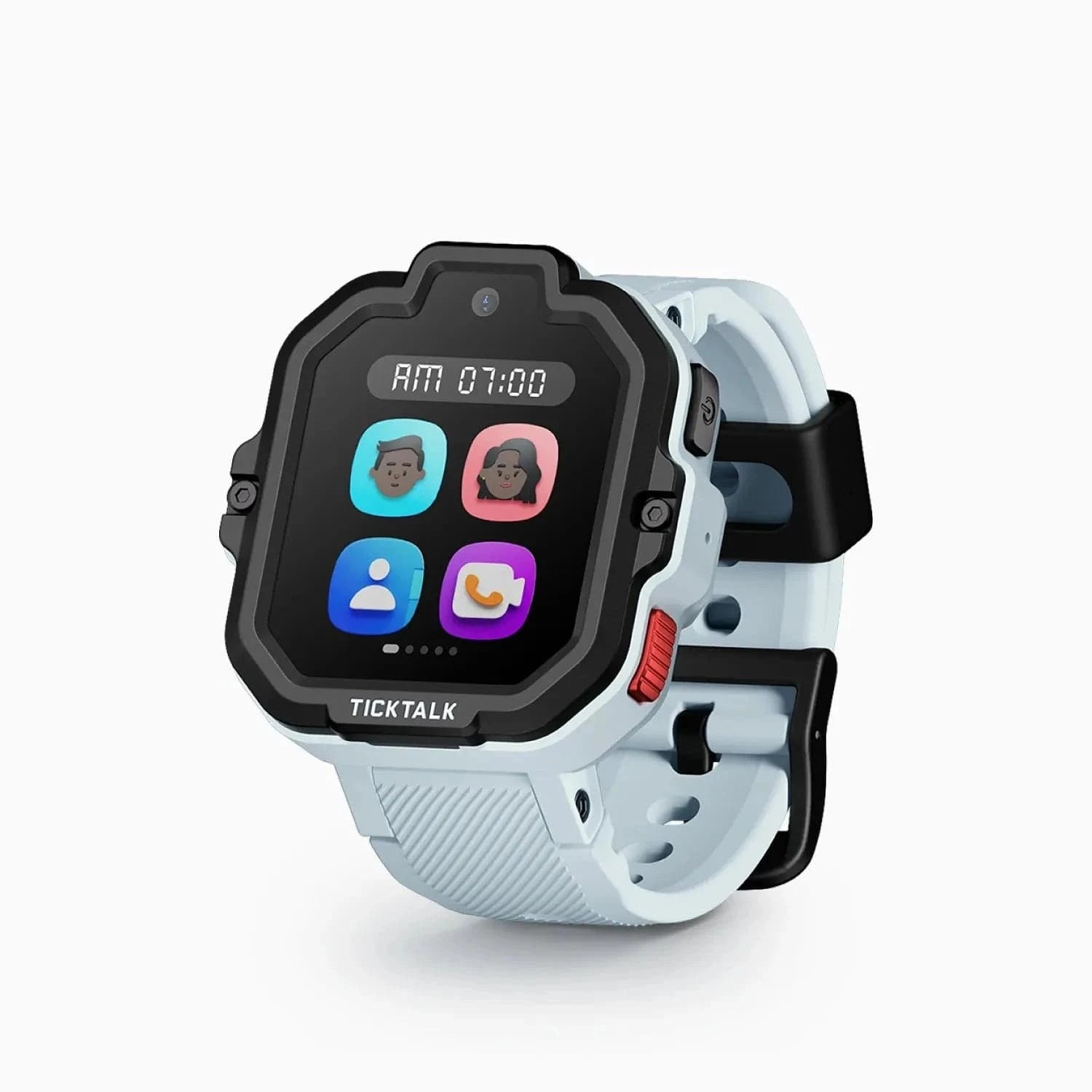
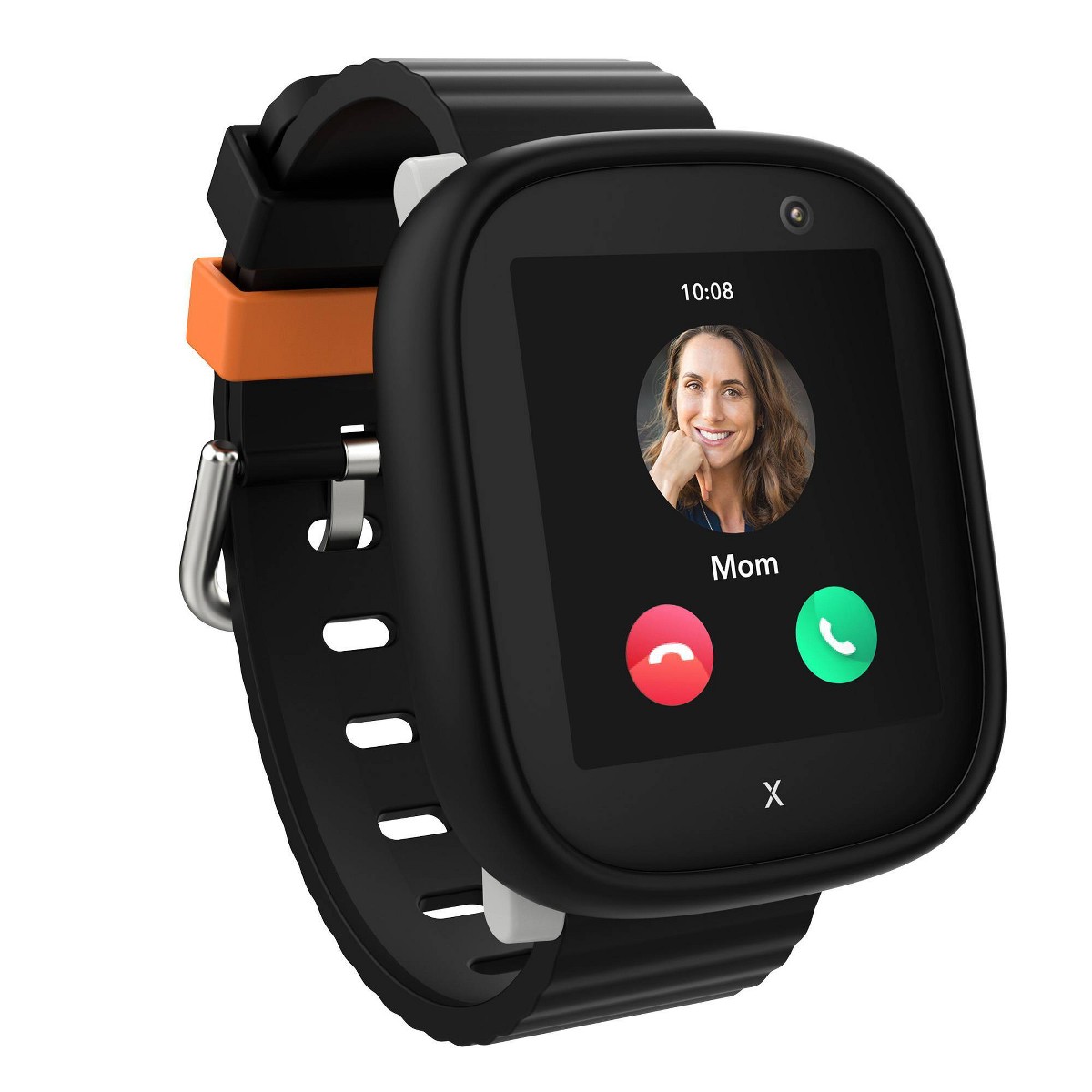
- The TickTalk 5 takes a nano-SIM on AT&T or T-Mobile, and the Xplora X6Play ships with an Xplora Connect SIM on those same networks (a third-party GSM SIM works, but Xplora doesn't support it).
- Gabb, Garmin, and COSMO run on their own service rather than a public carrier, so there is no carrier to match.
A TickTalk, COSMO, or Xplora will never connect on Verizon. That is not a defect and support cannot fix it. Our carrier compatibility guide has the full breakdown.
The same trap exists on the phone side: the Fitbit Ace LTE is Android only, the Apple Watch SE requires an iPhone for Family Setup, and Samsung Galaxy Watch kids mode requires a Samsung phone specifically, not just any Android. On the wrong phone the app will never finish setup, no matter what you do to the watch.
Stuck with an incompatible watch? Return it and buy one that fits. For AT&T and T-Mobile homes, the TickTalk 5 was my default -- video calling, IP67, 48-hour battery -- until TickTalk replaced it with the TickTalk 6; Amazon has the TickTalk 5 back in stock at $159.99. read our TickTalk 5 review
Step 5: Fix the Pairing Failure (QR Codes and Pairing Codes)
If the cellular side is healthy, the next failure point is the handshake between watch and app. Work these in order.
- Confirm you installed the right app. Every brand has its own, and there are lookalikes in both stores. Get the link from the manufacturer's site.
- Grant every permission the app asks for. Camera, Bluetooth, location, notifications. A denied camera permission produces a scanner that never recognizes anything -- indistinguishable from a broken QR code.
- Use manual entry instead of the scan. Nearly every app that offers QR pairing also accepts the code typed by hand. If the sticker is scratched or curved, type it.
- Check whether the device is already registered. Open-box and secondhand watches are often still tied to a previous owner's account, and only the manufacturer can release it.
- Pair from the watch's home screen -- not a boot logo or update screen.
A code rejected repeatedly on a new watch, permissions granted and manual entry tried, is one of the few good reasons to call support early.
Step 6: Confirm the Account and Device Are Actually Linked
A quiet failure I see often: the parent creates an account, the app looks fine, and the watch was never attached to it. The dashboard sits empty, or the device hangs at "connecting."
In the app's device or account section, find the list of paired devices. If the watch is not listed, redo the add-device flow from the start. Also check which account you are in -- secondary parent accounts usually have fewer permissions than the primary.
If the watch has signal and the app is connected but calls fail, this is almost always why. Nearly every kids smartwatch only allows calls to and from numbers a parent has approved, and out of the box that list is empty. The watch is not broken -- it is rejecting an unknown number exactly as designed.
Add yourself, then a second trusted adult, then test both directions. Failure in one direction only is a clue: outbound working while inbound fails points at the contacts list or a do-not-disturb schedule.
One plan-level cause too -- a data-only line tracks location but cannot carry voice. Our monthly plans comparison covers what each plan type includes.
Step 8: Rule Out Airplane Mode, Power Saving, and School Mode
Modes are the most embarrassing cause of a dead watch, because the fix takes seconds.
- Airplane or flight mode. Kids find this by accident constantly.
- Power saving or battery saver. These reduce or suspend location reporting. A watch updating location once an hour is often in a battery mode nobody set on purpose.
- School mode or do not disturb. A configured schedule silences calls by design. Check both the hours and the days -- a mistyped end time silences the watch all afternoon.
- Silent or vibrate. Confirm it before assuming the ringer is defective.
Ask your kid, without accusation in your voice, whether they pressed anything. Nine times out of ten they did, and they will tell you.
Step 9: Check Coverage Where You Actually Use the Watch
A watch that works downtown and dies at your house has a coverage problem, not a hardware problem. Kids watches use small antennas and drop a marginal signal well before your phone does in the same spot. If your home sits at the edge of your carrier's coverage, expect the watch to struggle indoors even when your phone shows bars.
Take the watch outside, wait several minutes, and see whether signal and location improve. Then repeat at school. If it is solid outdoors and useless at home on a bring-your-own-SIM model, try switching between AT&T and T-Mobile.
Weak signal also explains mystery battery drain: a radio hunting for a tower can drain a two-day watch in six hours.
Step 10: Update the Firmware
New watches sit in warehouses for months, so the firmware you unbox may be well behind current -- and old firmware is a real cause of connection and pairing bugs the manufacturer already fixed.
Let updates finish. Interrupting one by rebooting, unplugging, or walking out of range can leave the watch worse off than it started. Update with it charging -- most refuse to install on a low battery without saying so.
When to Stop Troubleshooting and Return It
Past a certain point, more troubleshooting is just delay -- and the return window is finite. Here is my line.
Return or exchange it if:
- It will not power on after a confirmed full charge on a known-good power source
- The screen is dead, flickering, or unresponsive
- The SIM tray or charging contacts are visibly damaged out of the box
- A SIM proven to work in a phone gets no signal in a watch you confirmed matches that carrier
- The pairing code is rejected repeatedly on a new device, permissions granted, manual entry tried
- It reboots on its own, repeatedly, untouched
- Support ran diagnostics and could not resolve it
Do not return it yet if:
- You activated within the last 24 hours -- provisioning may still be finishing
- You have not tested the SIM in a phone
- You have not confirmed compatibility with your carrier and your phone platform
- The only symptom is poor signal indoors at one location
A watch that cannot work on your carrier is a return, not a warranty claim -- nothing is defective about a TickTalk that will not run on Verizon. Either way, call support first and get a case number. Retailers are more flexible when the maker has already looked, and support can see activation status you cannot.
If You Want Fewer Things to Go Wrong Next Time
Once you have been through this, the appeal of a watch with fewer moving parts is obvious.
Fewest failure points: the Gabb Watch 3e at $229.99 runs on Gabb's own network -- no SIM to buy, no carrier to match -- with no camera, internet, or games. Check Price on Amazon
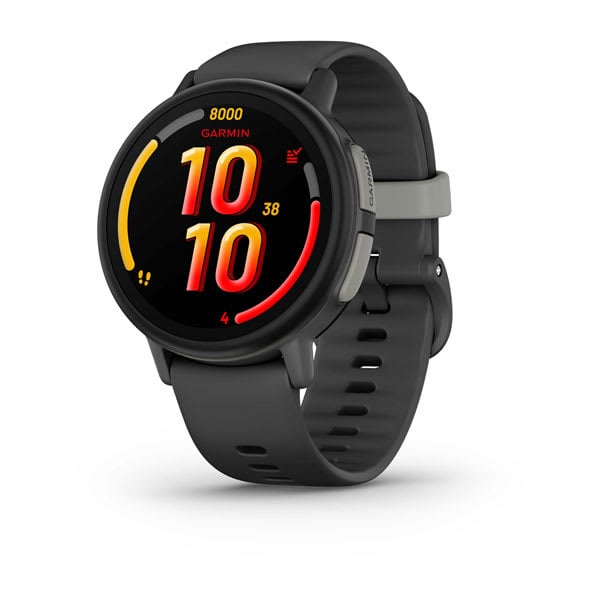
Own-network, tougher hardware: the Garmin Bounce 2, $299.99, Garmin's own service at $9.99 a month, 5 ATM, no camera.
Most flexible on AT&T or T-Mobile: the TickTalk 5, ages 3 to 12, video calling, 48-hour battery -- but not on Verizon.
Verizon households: the newest Gizmo Watch 4 is the current pick -- 5 ATM swim-proof, with Watch Removal Detection -- and the older Gizmo Watch 3 is still sold cheaper. Both go through Verizon rather than Amazon.
For the mistakes that cause these headaches in the first place, our guide to common buying mistakes is worth ten minutes before your next purchase.
Frequently Asked Questions
Why does my kid's new smartwatch say "No Service"?
Most often the line is not fully active yet. A newly provisioned line can take up to 24 hours to register, so a watch activated this morning may show no service this afternoon and work fine tomorrow. The other common causes are a SIM never activated with the carrier, or a watch incompatible with the carrier whose SIM you used.
How long should I wait after activating before I worry?
Give it a full 24 hours before treating it as a failure. Leave the watch powered on near a window rather than repeatedly resetting it. If the line still shows inactive in the parent app after a full day, contact the carrier or manufacturer -- that is a provisioning issue on their side, not something you can fix from the watch.
Will any kids smartwatch work on Verizon?
Only the Gizmo family works on Verizon -- the newest Gizmo Watch 4 and the older, cheaper Gizmo Watch 3, both Verizon exclusives sold through Verizon rather than Amazon. TickTalk, COSMO, Xplora, Gabb, and Fitbit do not work on Verizon. The TickTalk 5 takes a nano-SIM on AT&T or T-Mobile, the Xplora X6Play runs on AT&T or T-Mobile through its pre-installed Xplora Connect SIM, and COSMO bundles its own Cosmo Mobile service. Verizon families should choose accordingly before buying.
The watch has signal but calls won't go through. What's wrong?
Check the approved contacts list first. Most kids smartwatches only accept calls to and from numbers a parent has added, and that list starts empty. If contacts look right, check whether school mode or do not disturb is silencing the watch, and confirm the plan includes voice -- a data-only line tracks location but never completes a call.
Why does the parent app say the watch is offline when the watch looks fine?
That points at the app or account, not the cellular connection. Confirm the watch actually appears in the app's list of paired devices -- an account can be created without a device ever being attached. Then check the app's location, Bluetooth, and notification permissions. Force-closing the app and restarting your phone resolves a surprising share of these.
When is it actually a defective watch?
When it will not power on after a confirmed full charge, the screen is dead, it reboots on its own repeatedly, or a SIM proven to work in a phone gets no signal in a compatible watch. Damaged charging contacts or a broken SIM tray also qualify. Everything else -- provisioning delays, carrier mismatches, pairing errors -- is fixable or is a return.